


Apple has introduced the automated Always-On display feature for the iPhone 14 and 15 Pro/Pro Max. This feature allows you to keep your screen on for a desired time frame, showing important information such as the time, date, and notifications without having to touch your iPhone.
However, constantly having your screen on can also drain your battery quickly. So, in this article, I will guide you through the process of automating the iPhone’s Always-On display using Focus modes and the Shortcuts app.
How to automate iPhone always-on display with Focus Filters
- Launch the Settings app on iPhone 14 and 15 Pro/Pro Max → go to the Focus menu.
- You can either select an existing Focus or tap the (+) icon from the top-right corner to create a new one.
I have demonstrated the process for an existing Focus mode.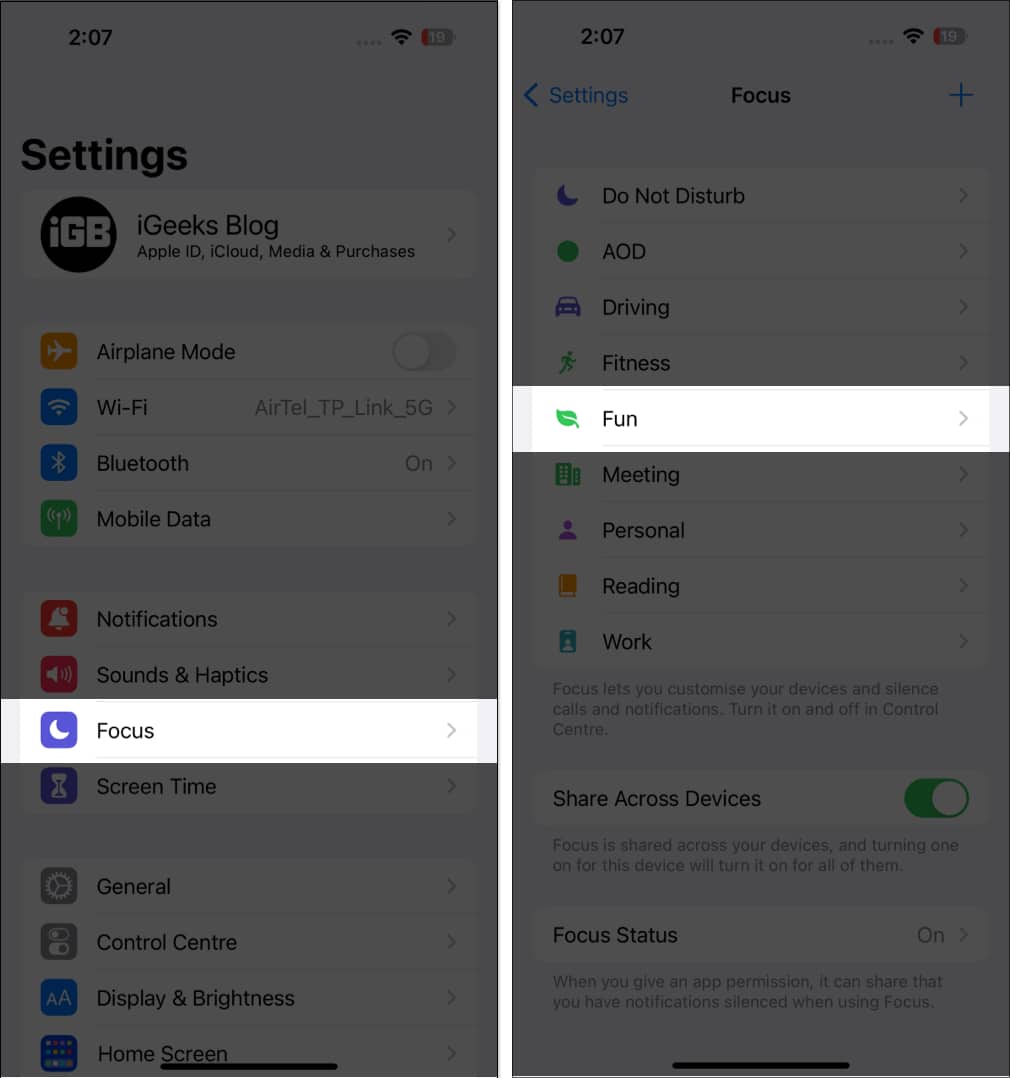
- Navigate to Smart Activation under Set A Schedule → toggle on the Smart Activation feature.
If you don’t find it or want to add a new schedule, you can do so by tapping Add Schedule.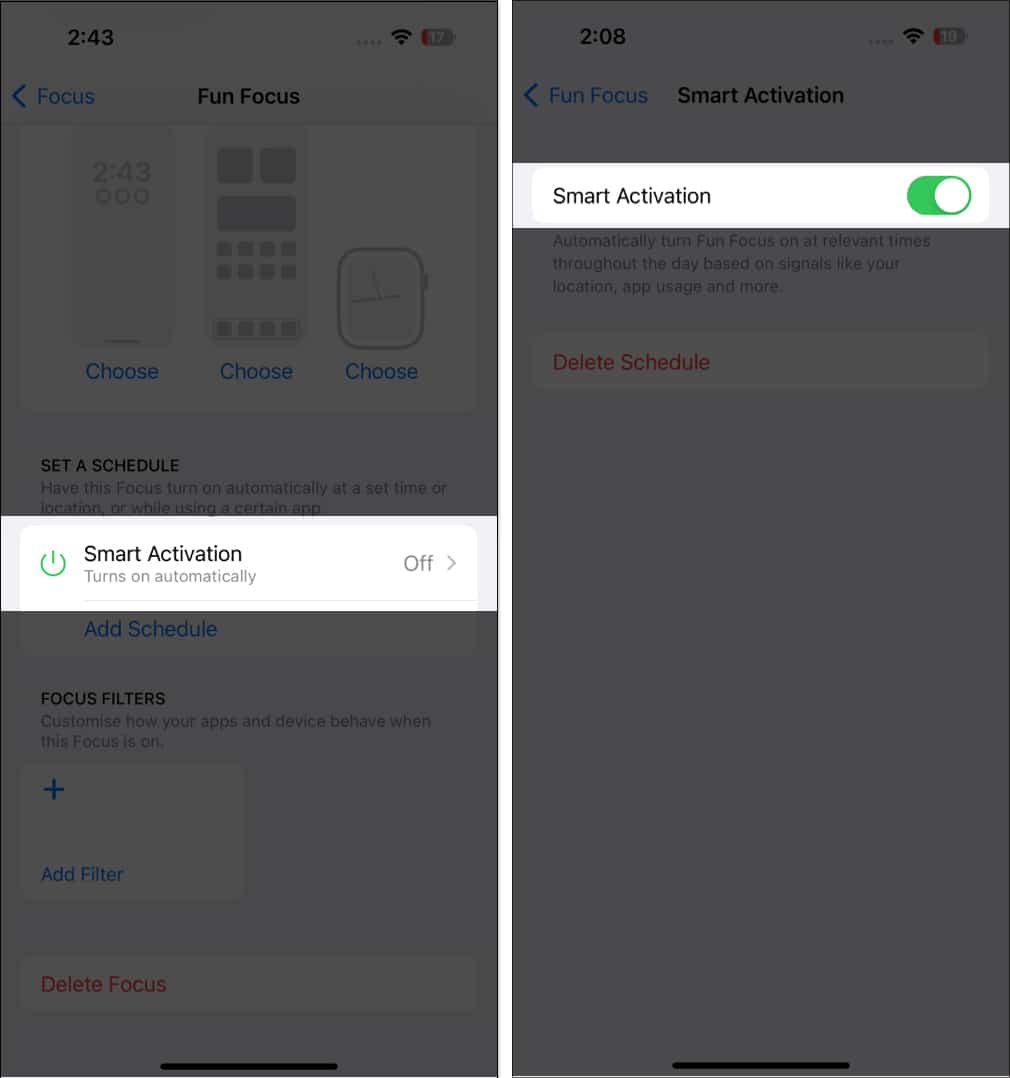
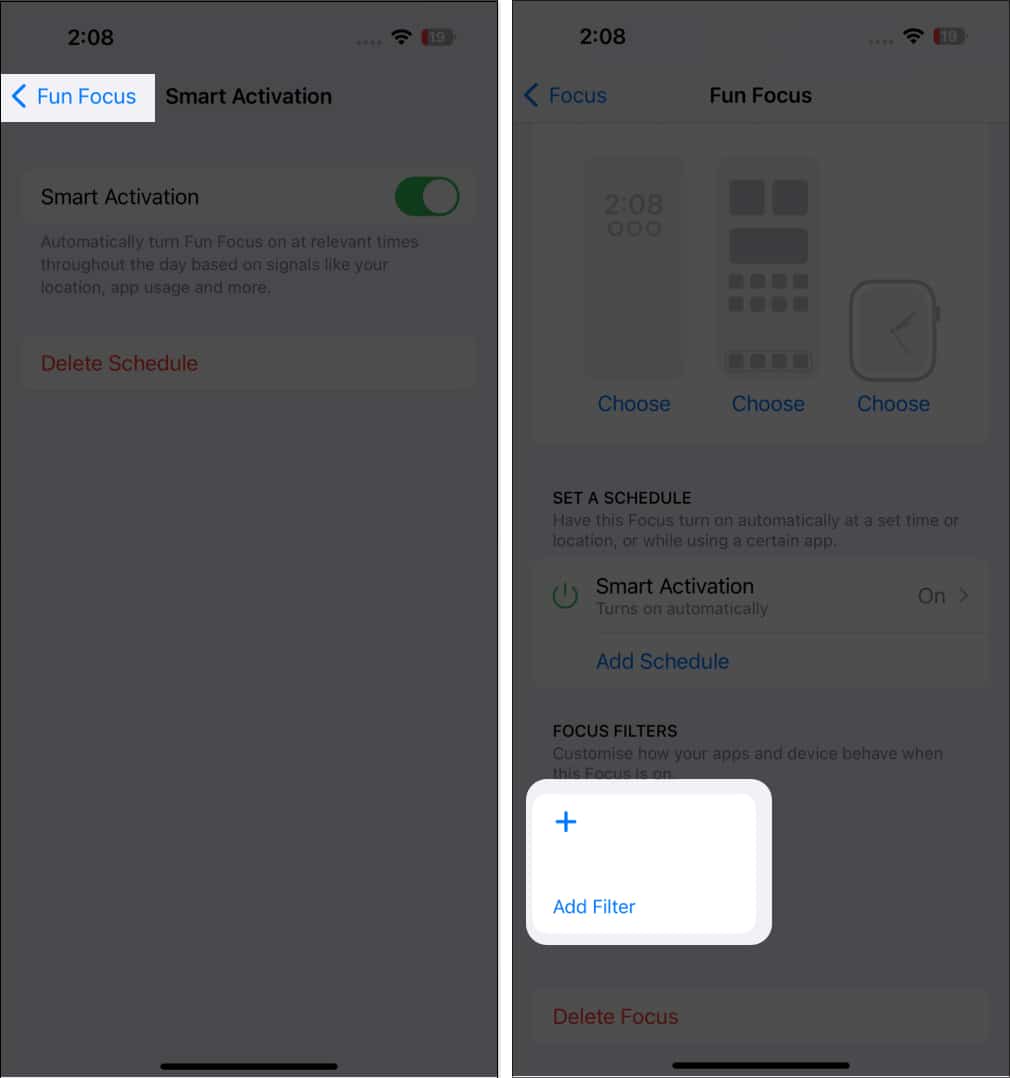
- Now, go back to the previous menu → Select Add Filter.
- Choose Always On Display under System Filters → toggle on Always On Display.
- Tap Add at the top right.
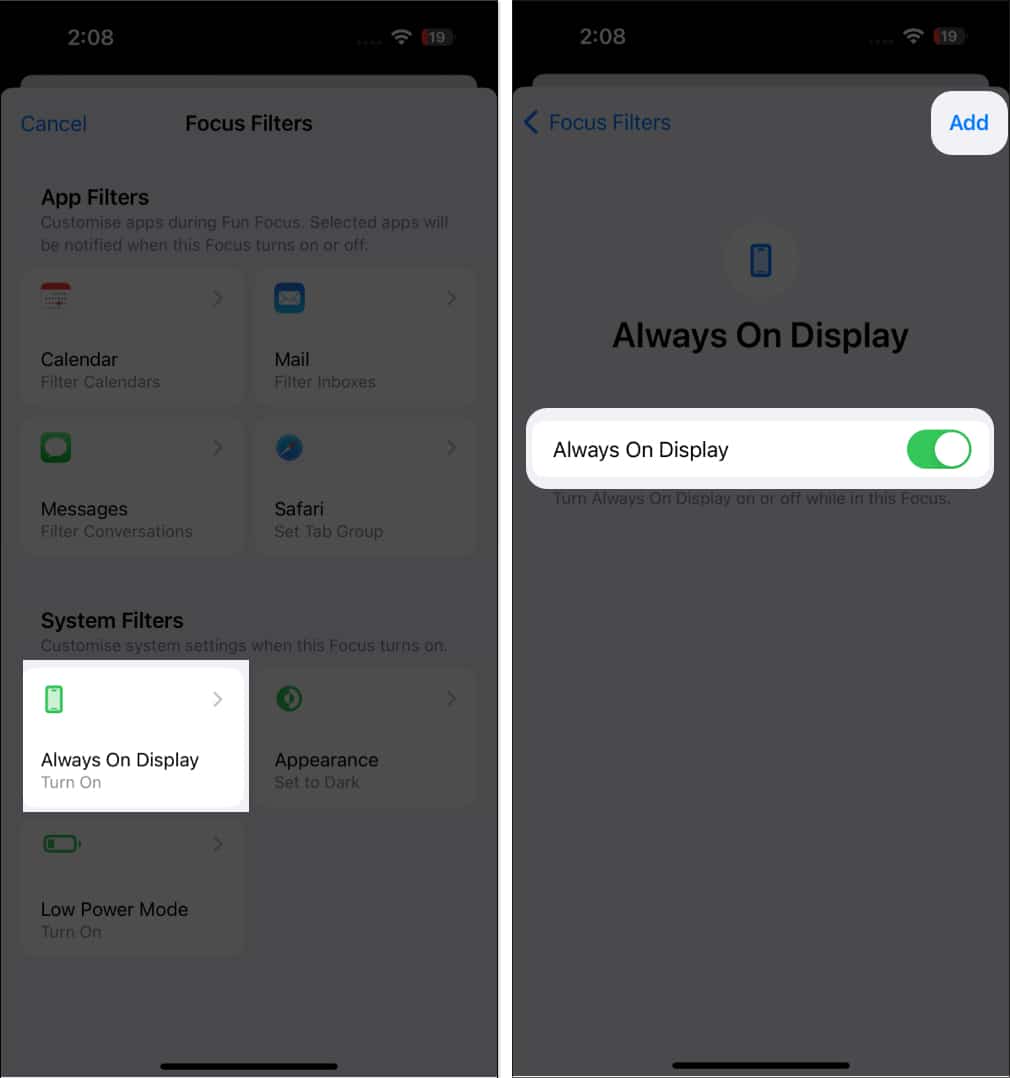
That’s it! You have automated AOD for this particular Focus.
In addition to predesigned Focus options, you can create a custom Focus using the (+) icon in the Focus menu. Needless to repeat, the AOD feature will sync with the Focus mode associated with it.
Set up control of Always-On display in the Shortcuts app
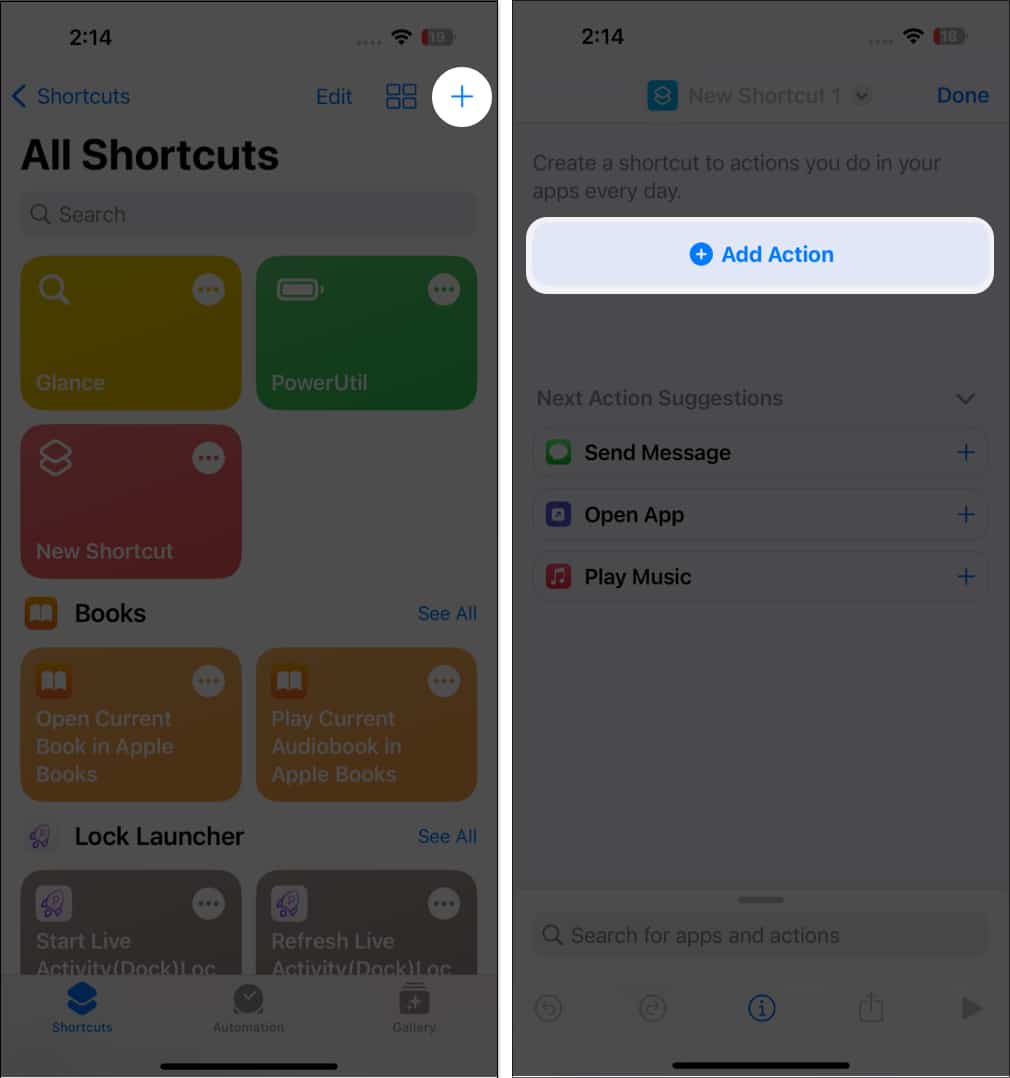
- Open the Shortcuts app.
- Tap the (+) icon from the top-right corner of the screen.
- Choose Add Action.
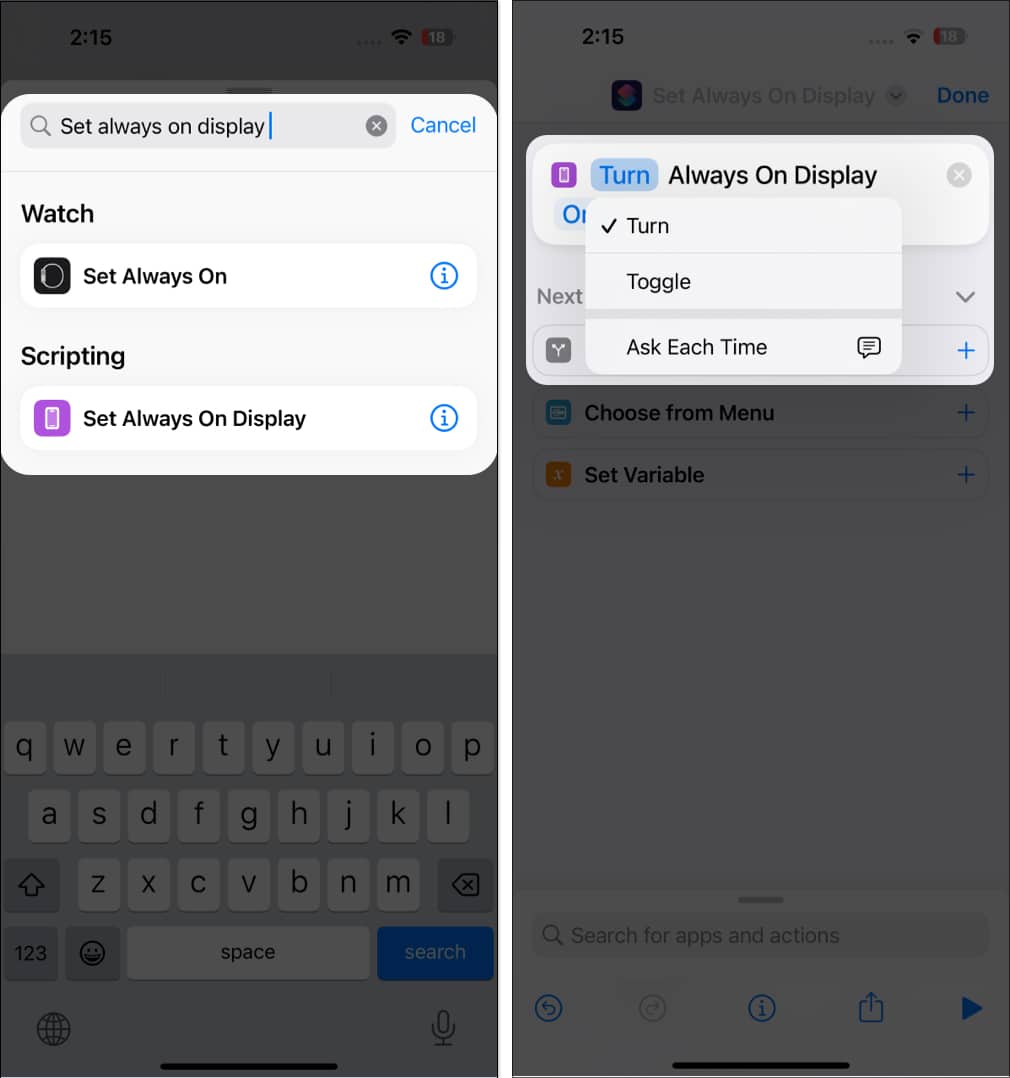
- Search for Set Always On Display from the search bar and Select Turn or On to customize what will happen when you run the Shortcut.
- Tap Done once the setup settings are finalized.


The automatic display-on feature is triggered as soon as you access the shortcut. Nonetheless, you can easily turn off Always On Display on your iPhone 14/15 Pro whenever you feel like it.
Troubleshooting common issues with AOD
Automating an AOD can provide a more convenient user experience but also present some common challenges.
- Automating the Always-On display can result in an increase in battery drain, as the display is constantly running.
- Sometimes, the Always-On display can become unresponsive and needs to be rebooted.
- Automating the Always-On display can expose bugs or glitches that can be difficult to fix.
If you face any such issues, here’s our guide to fixing Always-On display not working on iPhone.
Bottom line!
AOD is a great feature of the iPhone, but it can be a bit of a hassle, especially if you have a busy routine. Fortunately, automating the process gives you convenience only during preset hours.
I hope this article has been helpful. Feel free to let me know about your concerns below, and I’ll address them as soon as possible.





