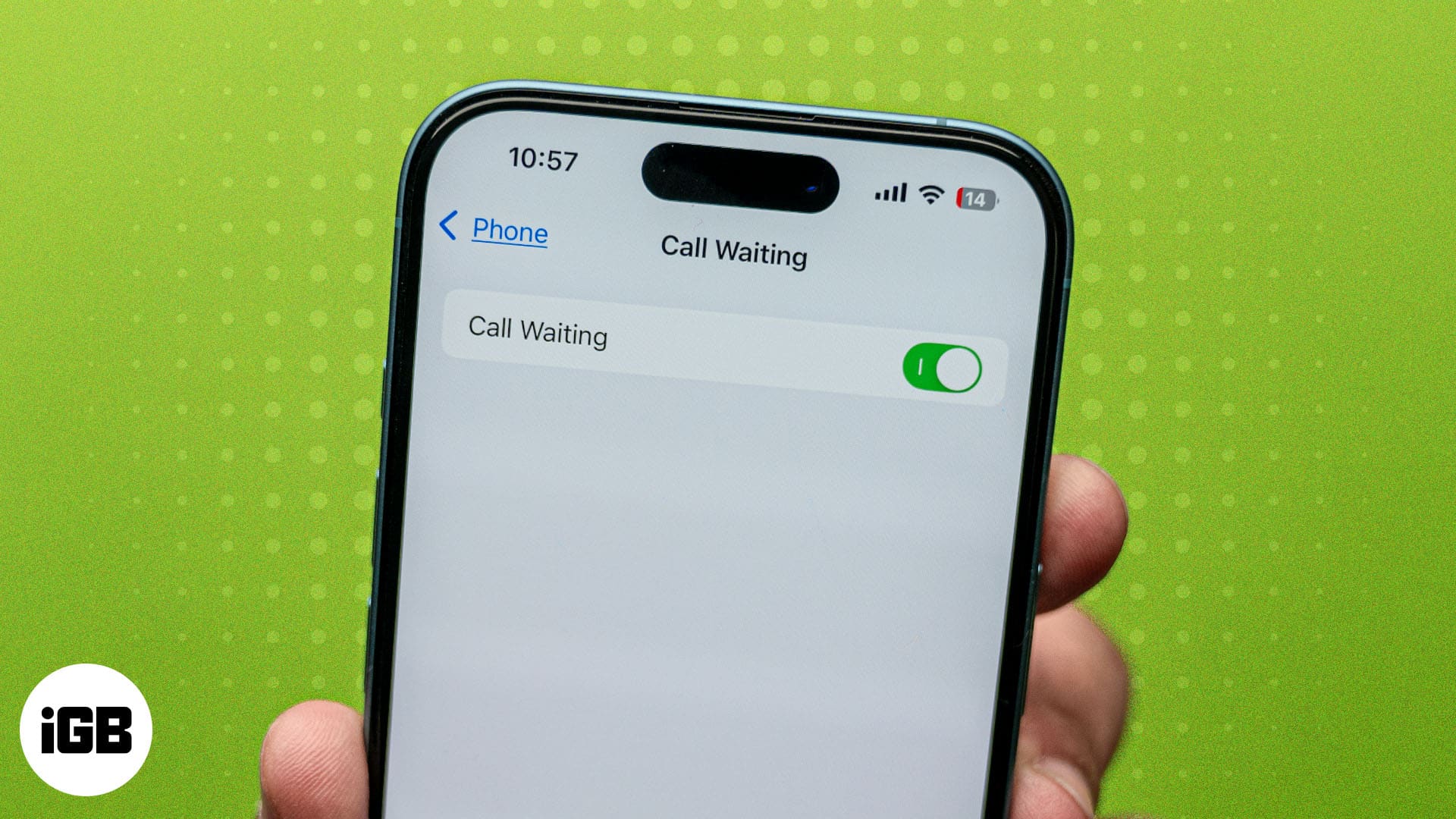
Did you miss an important call while you were taking on another? It can be quite frustrating when it happens. However, this is where the call waiting feature on your iPhone comes in! It notifies you about an incoming call when you’re on another call and lets you answer or decline it, so you never miss any important calls. Here’s everything you need to know about the call waiting feature on an iPhone.
What is call waiting on iPhone?
Call waiting is a convenient feature on your iPhone that lets you manage multiple calls simultaneously. If you’re on a call and there’s an incoming call, call waiting notifies you and gives you multiple options to handle the second call without disconnecting the first one.
This way, you can decide whether or not to take an incoming call without disrupting your ongoing conversation. It also provides flexibility to handle incoming calls without needing to hang up or let calls go unanswered. And most importantly, the feature works over practically all cellular and Wi-Fi calling arrangements.
How to turn on or off call waiting on iPhone
Activating or deactivating the call waiting feature on your iPhone is straightforward. Here’s what you need to do:
- Open the Settings app on your iPhone.
- Scroll down, select Apps and go to Phone.
- Tap on Call Waiting. If you use dual SIM, select between Primary and Secondary.
- Finally, toggle the switch next to Call Waiting on or off.
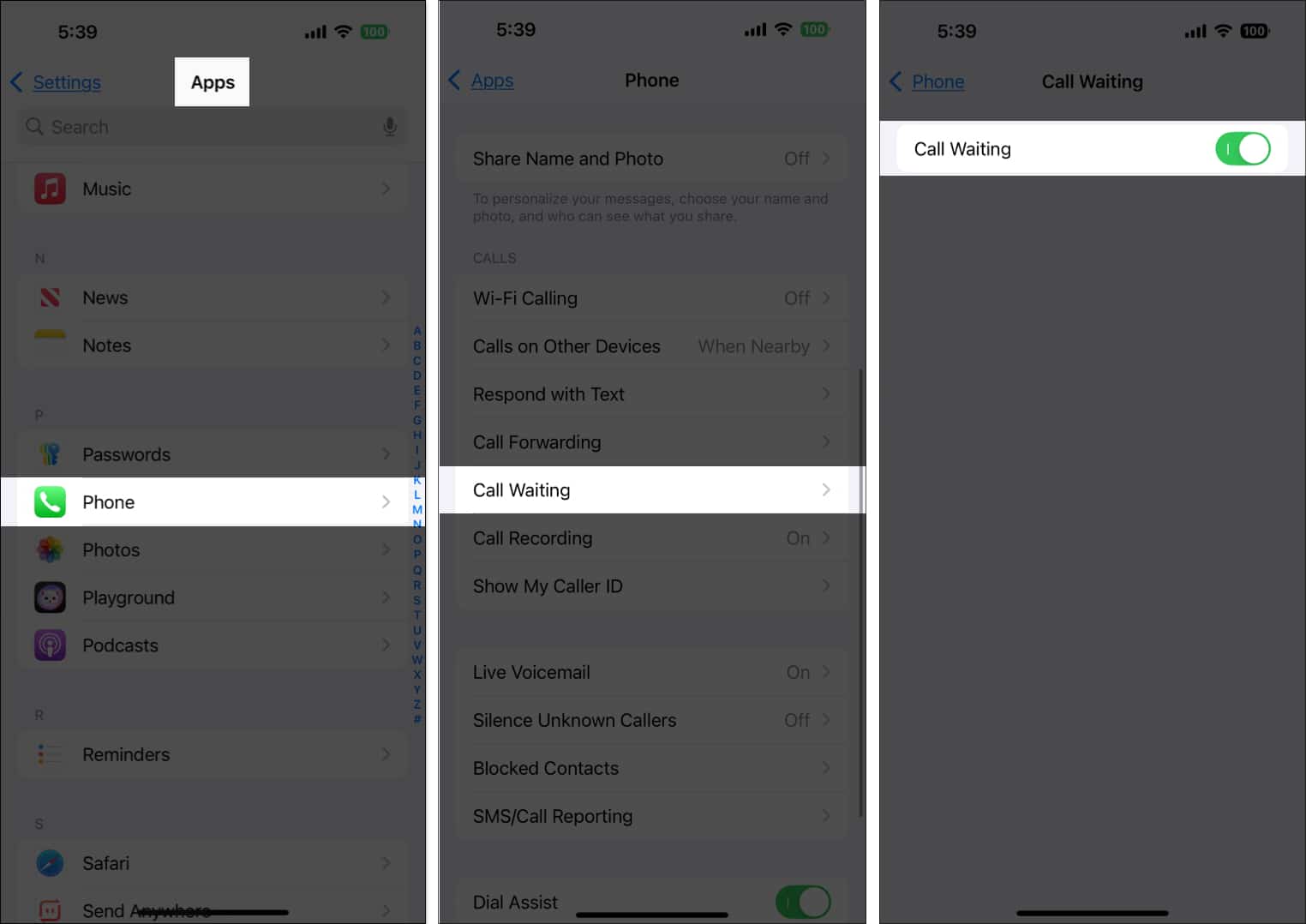
When call waiting is disabled, the second incoming call is automatically forwarded to voicemail without alerting you.
Note:
How does call waiting work on iPhone?
When you have call waiting enabled on your iPhone, whenever you’re on a call and a second call comes in, your iPhone alerts you with a beep sound. In addition, the call screen displays details about the incoming caller, such as their name (if it’s saved in your contacts) or phone number, along with the following options to manage the second call:
- Hold & Accept: It places your current call on hold and answers the incoming one. This allows you to accept the second call without disconnecting the first seamlessly.
- End & Accept: Using it, you can disconnect the ongoing call and answer the new one. It’s a useful option when the second call is urgent and you no longer want to continue talking on the first one.
- Decline: This sends the second call directly to your voicemail, allowing you to focus on your current conversation.
When you don’t take any action and the second call goes unanswered, it’s directed and sent to voicemail, granted you’ve enabled it on your iPhone. This ensures the caller can still leave a message for you to follow up later.
Switching between calls
If you choose the Hold & Accept option, you can alternate between the two calls or merge them as required using the following on-screen buttons:
- Swap: Use it to switch between the active call and the one on hold. The caller on hold will not hear the ongoing conversation.
- Merge: If your carrier supports it, you can merge both calls into a three-way conference call.
Note:
that this call waiting functionality works when you receive the second call on the same line. If you use dual SIM, you must enable Wi-Fi calling and have a data connection on your iPhone to leverage the feature.
Signing off…
You should be able to turn on call waiting on your iPhone easily with the provided steps. Whether it’s managing work-related conversations or catching up with loved ones, you can now handle multiple calls efficiently and never miss an important one again!
If you found this guide helpful, share it with your friends.