Memoji is the name for animated characters you can customize to look like you or however you want them to look. They’re a popular way to make messaging more fun on your iPhone or iPad, but you can also use them on your Mac!
Doing so allows you to add more personality to your texts, enhancing digital interactions across your Apple devices. In this guide, we’ll cover how to create and use Memoji on a Mac so you don’t miss out on the fun.
How to create Memoji in Messages on Mac
You can create your Memoji in the Messages app on your Mac. Here’s how:
- Open Messages on your Mac.
- Go to a conversation thread or start a new one. Then, click the + icon on the left side of the text field and select Stickers.
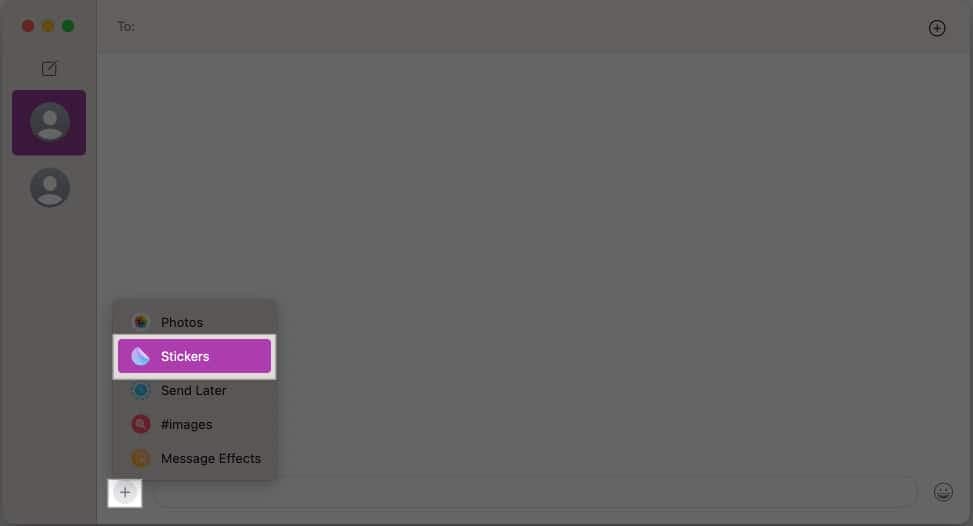
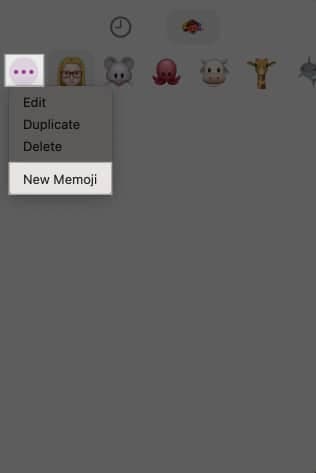
- In the small window that opens, tap the three-dot icon and select New Memoji.
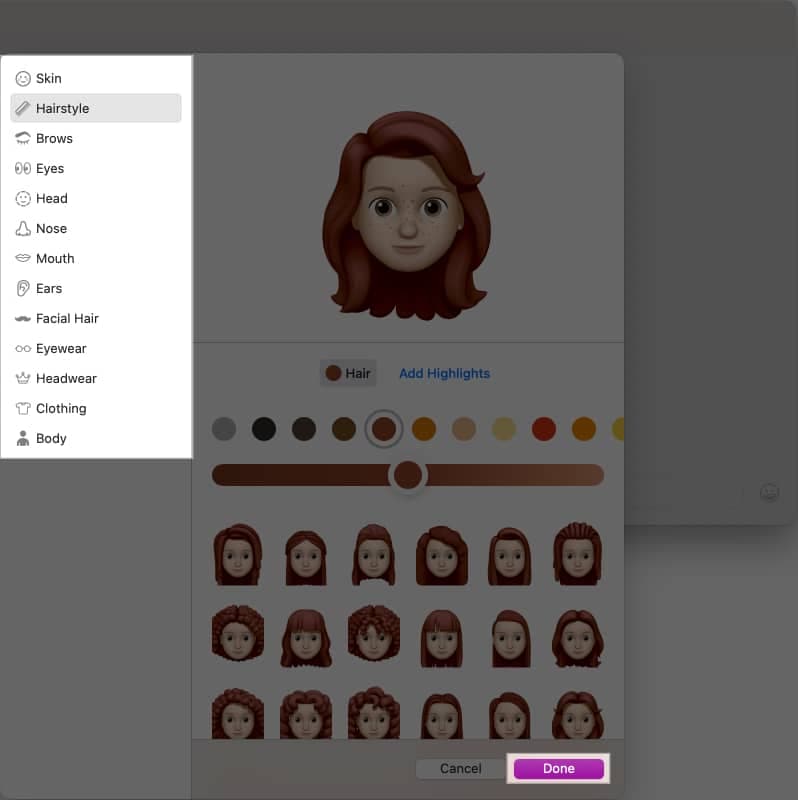
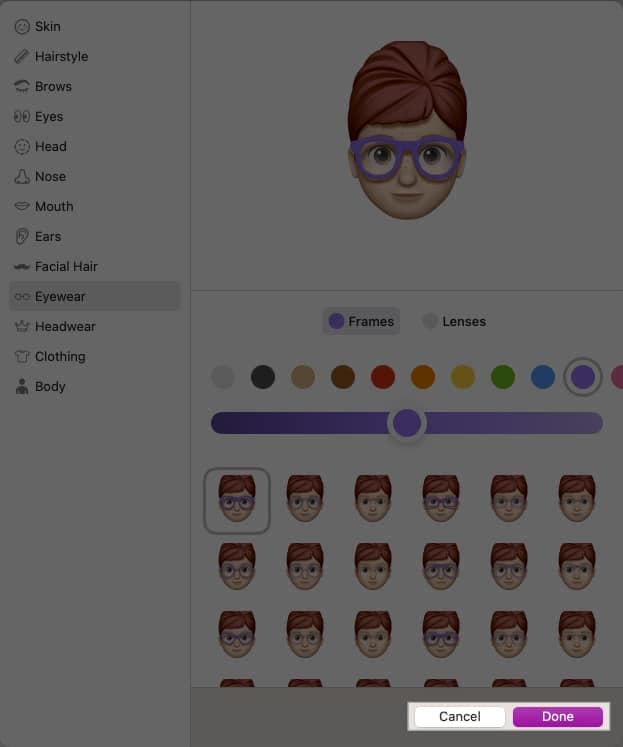
- Now, you can design and customize your Memoji as you wish. Use the options on the left pane to customize different aspects of the Memoji’s appearance, such as Skin, Hair, Eyes, etc.
- Once you’re satisfied, click the Done button to save your Memoji.
How to use Memoji in Messages on Mac
It’s super easy to use your Memoji in any conversation in the Messages app on a Mac. Just follow the steps below.
Go to the conversation thread in which you want to use your Memoji. Click the + button and choose Stickers. You’ll now see a range of Memojis with the custom avatar you created. Select one, and it will appear in your message, ready to send.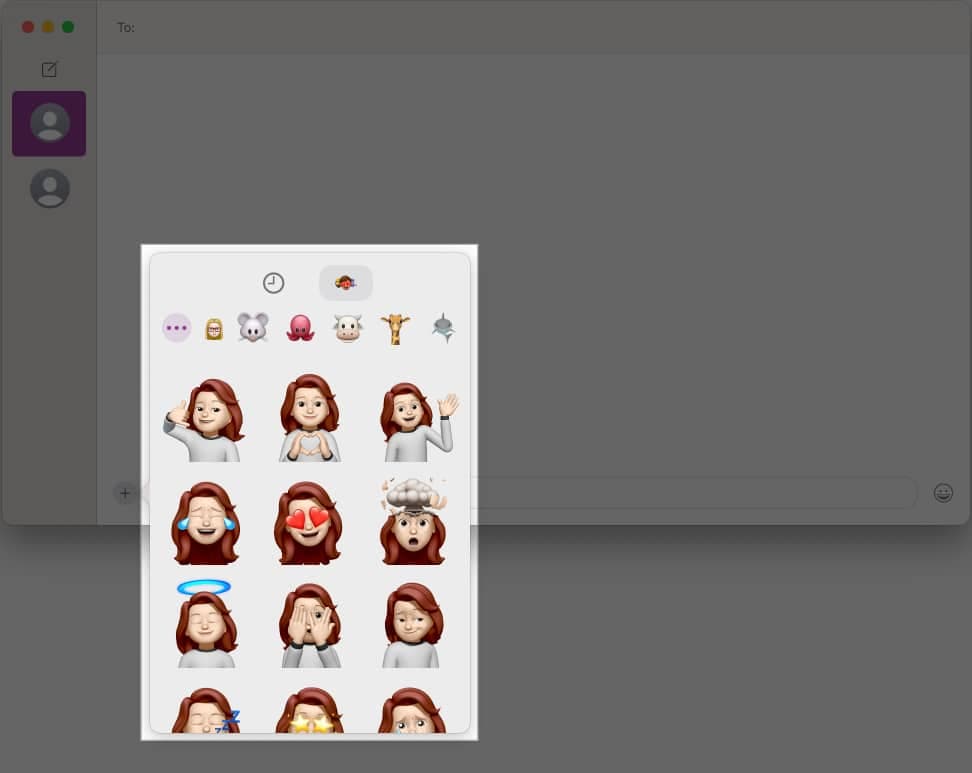
You can also drag a Memoji sticker to a specific spot in a conversation or drag it over a specific text bubble to add it as a reaction to that message.
How to edit, duplicate, or delete Memoji on Mac
After creating a Memoji, you can edit it whenever you like to change its appearance. You can also duplicate or delete it if you want.
- In a Messages thread, click the + icon and select Stickers.
- Now, click the three-dot icon and choose Edit to make changes to the appearance of the Memoji.
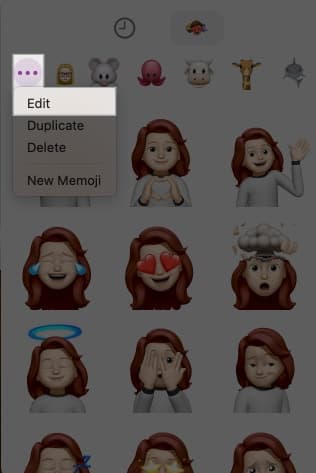
- Once satisfied, click Done. Or click Cancel if you don’t want to save the edits.
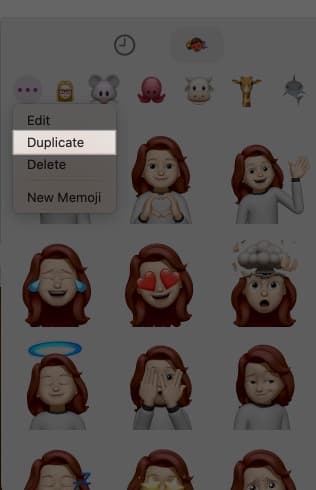
- To make a copy of the Memoji, select Duplicate.
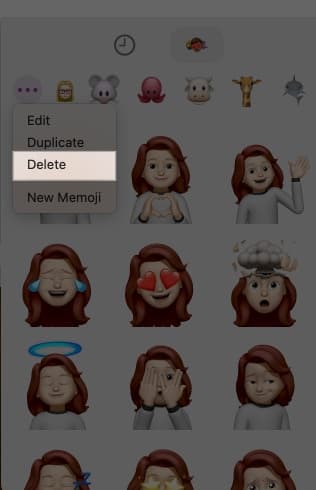
- To delete a Memoji, select Delete. Confirm when prompted to permanently delete the Memoji.
How to set an animated Memoji on your Mac lock screen
You can set a Memoji as your profile picture to breathe life into your Mac’s login screen. Here’s what you need to do:
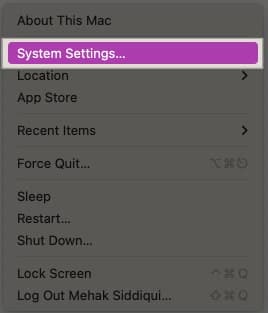
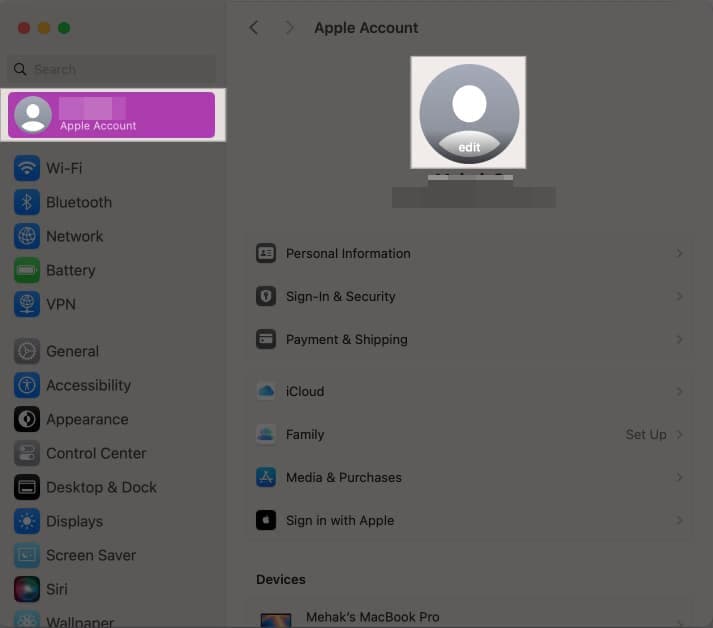
- Click the Apple logo in the menu bar and select System Settings.
- Click your Apple Account profile in the left sidebar.
- Click the Edit button in the round frame where your picture would go.
- Select your Memoji from the available options.
- You can also resize the Memoji using the slider. When you’re happy with the way it looks, click Save.
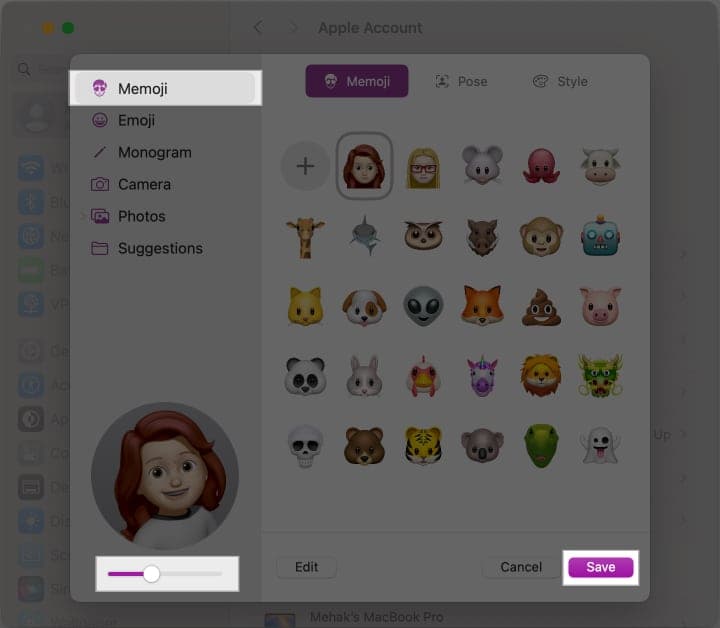
Now, whenever your Mac’s screen is locked, you’ll be able to see your animated Memoji displayed with your user name.
Signing off…
That’s how easy it is to create a Memoji on your Mac and use it in your Messages conversations or as an animated picture for your user profile. I hope this guide answers all your questions about using Memoji on a Mac.
If there’s anything else you’d like to know, let us know in the comments below.
You must like to read: