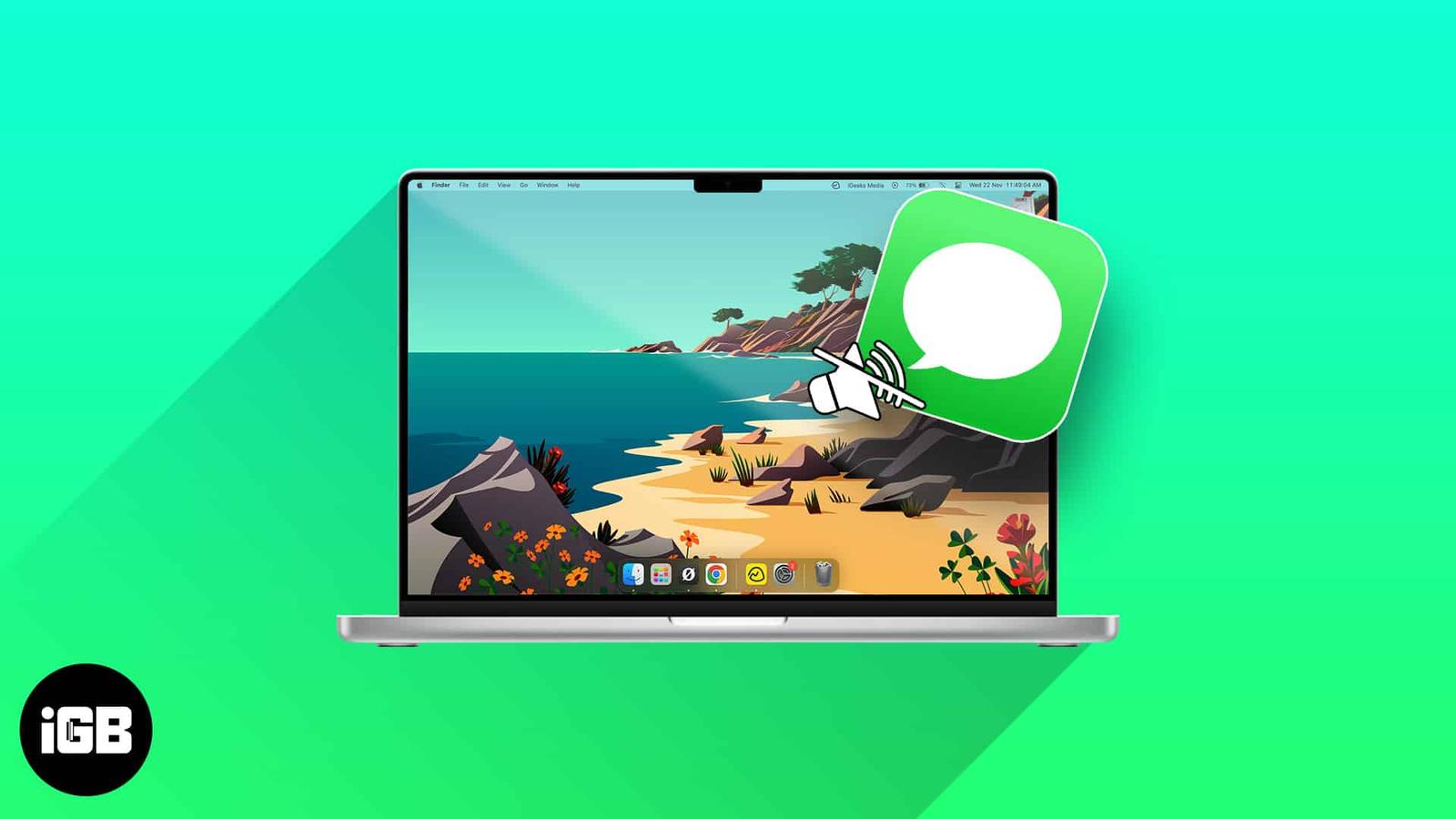
Are you tired of hearing the swoosh sound every time you send or receive a message? Don’t worry, I have been there too. While it sounds fancy on the iPhone, the same isn’t true for the Mac, especially if you are at a workplace. So, in this guide, I’ll show how to turn off the message sound effect on Mac.
How to turn off message sounds on Mac
Fortunately, there are a handful of ways to achieve this goal. Let’s explore them all.
Method 1: Via Message settings
- Launch the Messages app on Mac.
- Click Messages on the Menu bar → Choose Settings.
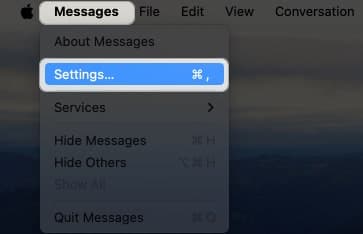
- Now, uncheck Play sound effects.
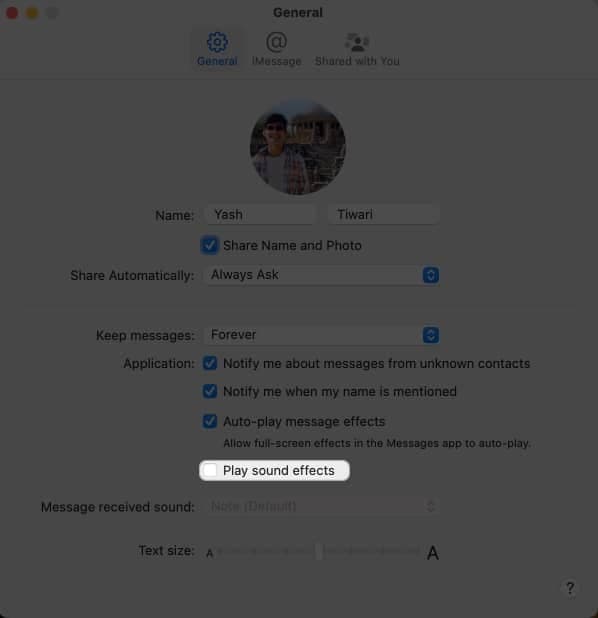
That’s all! You’ll no longer hear the whooshing sound whenever you send a text in a message.
Method 2: From System Settings
- Click the Apple logo → System Settings.
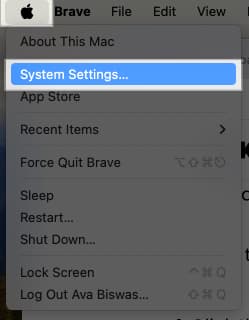
- Select Notifications on the left pane → Choose Messages.
- Toggle off Play sound for notification.
After making this change, you will no longer hear any annoying sound notifications when messages are received on your Mac.
Method 3: Silence your Mac via Keyboard
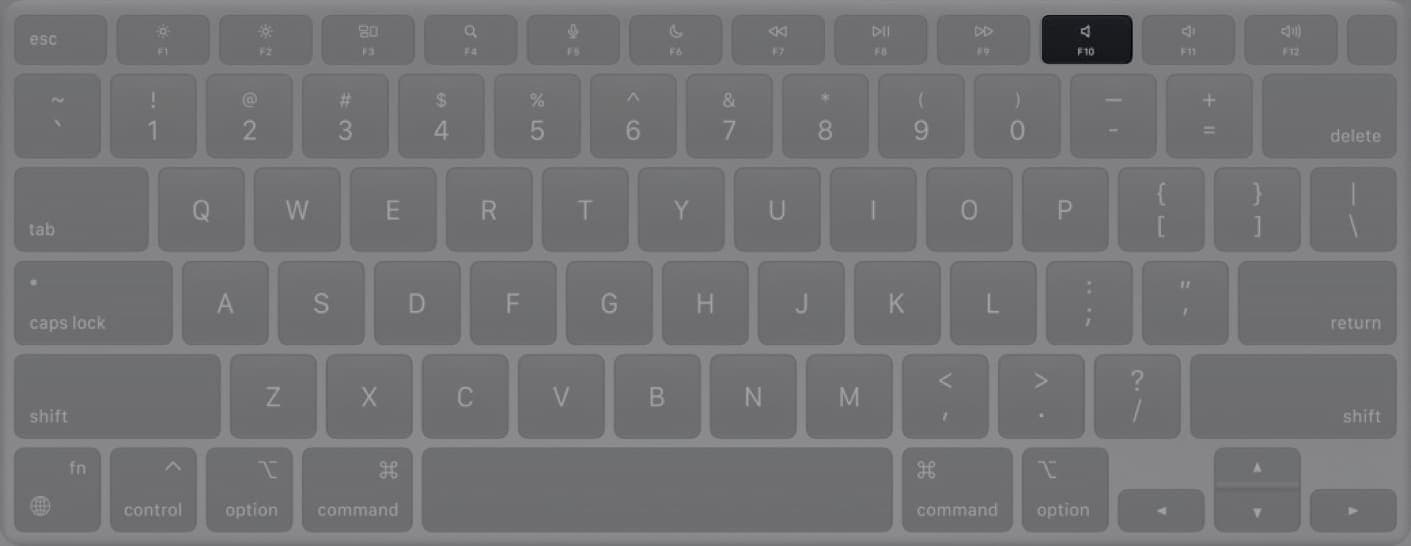
- Press the mute switch (F10) on your Keyboard.
- Now, you’ll not hear any multimedia sounds until you manually enable the system sounds.
- Press F10 again to revert your action.
Method 4: Enable Focus mode
Manually enabling and disabling the messages sound on Mac can very soon become hectic. If you’re looking to silence the messages app for a respective period, using Focus mode on Mac is the best alternative. It can automate this task for the chosen time frame without you having to remember or worry about the iMessage notification sound on Mac.
As a result, you can ensure minimal distractions during work hours and maintain uninterrupted workflow while still receiving important notifications.
Silence the swoosh!
Whether you’re working on a project or just not wanting to hear the swoosh sound on your Mac, I hope this guide helps. If you have any further questions regarding notifications or alert sounds on your Mac, do let me know in the comments. I’d be more than happy to provide you with a solution.
FAQs
No, the settings are specific to each device. If you want to disable message sound effects on your iPhone or iPad, you’ll need to adjust the settings on each device individually.
Yes, if you’re looking for a quick solution, you can enable the Do Not Disturb mode for your Mac and silence all notifications at once.
Read more:
- How to sign out of iMessage on Mac in just 5 easy steps
- How to turn off Direct Messages (DMs) in Instagram on iPhone
Our favorite Mac accessories:
- Apple Magic Keyboard with Numeric Keypad
- Apple Magic Trackpad
- Kensington SD5900T Thunderbolt 4 Dock
- Anker 5-in-1 USB-C Hub
- UGREEN Nexode 65W GaN Charger
- Lamicall Aluminum Laptop Stand
We may earn a commission when you buy through these links.