
Slide-showing your pictures is one of the best ways to create stories with your memories. You can pull this up with your iPhone to entertain your friends and family members when they visit. The Photos app on your iPhone not only lets you create slideshows but also allows you to add music to the flow.
I’ll show you how to create a slideshow with music on your iPhone in this article. Read along!
How to make a slideshow with music on iPhone
- Launch the Photos app → Select the photos you want in a slideshow.
- Tap the three-dot icon → Select Slideshow.
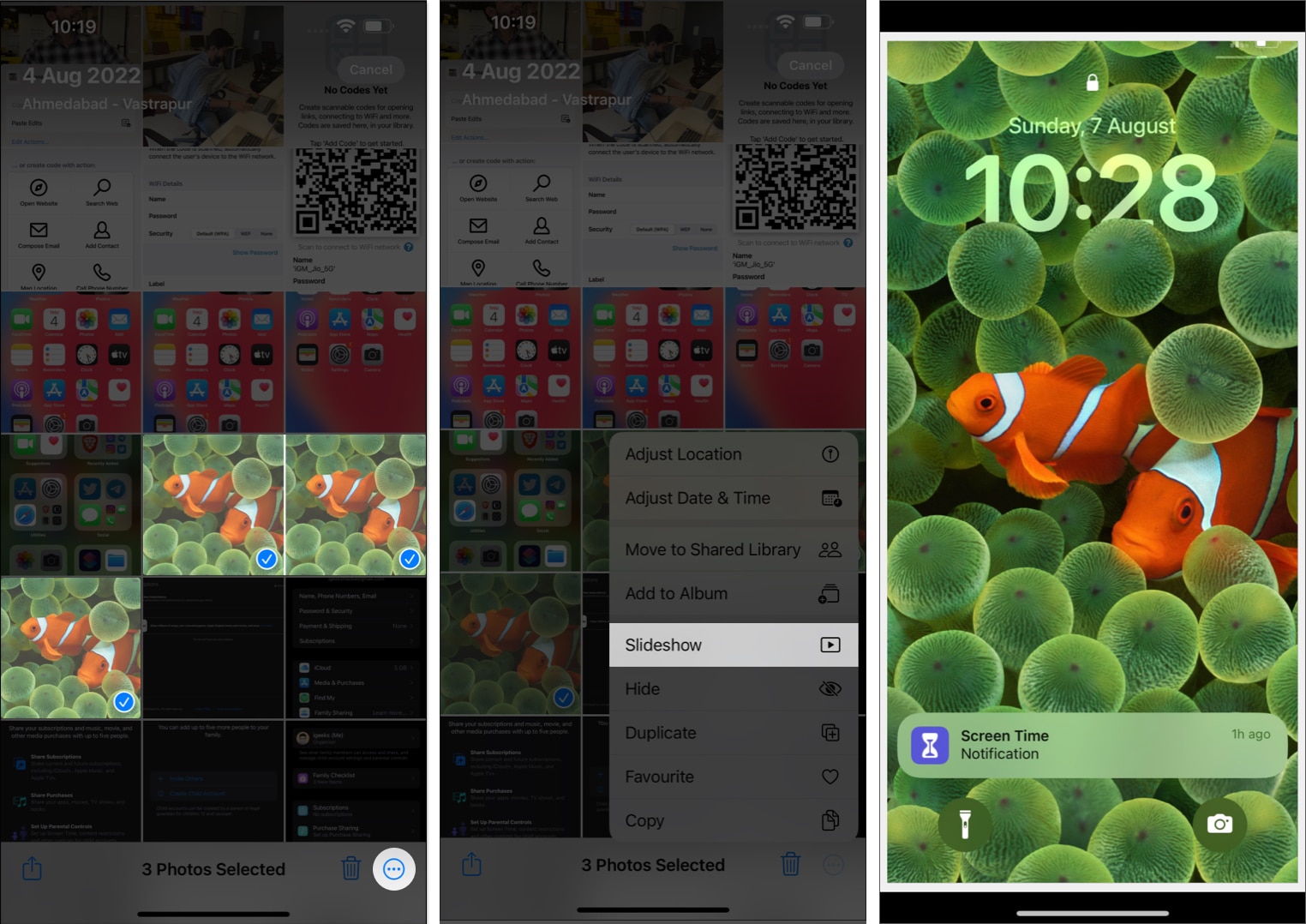
- In this instance, a slide will play on your iPhone.
However, the slideshow we created above will have a default music and theme. But you can customize it with your favorite song and choose a suitable theme. Let’s learn how!
How to edit slideshow with music on iPhone
- Tap the slideshow and select Options from the bottom right corner.
- Here, you can alter the following parameters:
- Theme: Select a pattern for the slideshow.
- Music: Choose favorable background music. You can further select your favorite music through the Music Library.
- Repeat: Toggle on this feature if you wish to play the slideshow in a loop.
- Adjust the speed of the slideshow.
- Hit Done once the settings are as you desire.
- Tap the play icon to watch the slideshow with changes.
- Select Done to exit from the slideshow.
You can also AirPlay the slideshow or mirror your iPhone to an Android TV to watch it.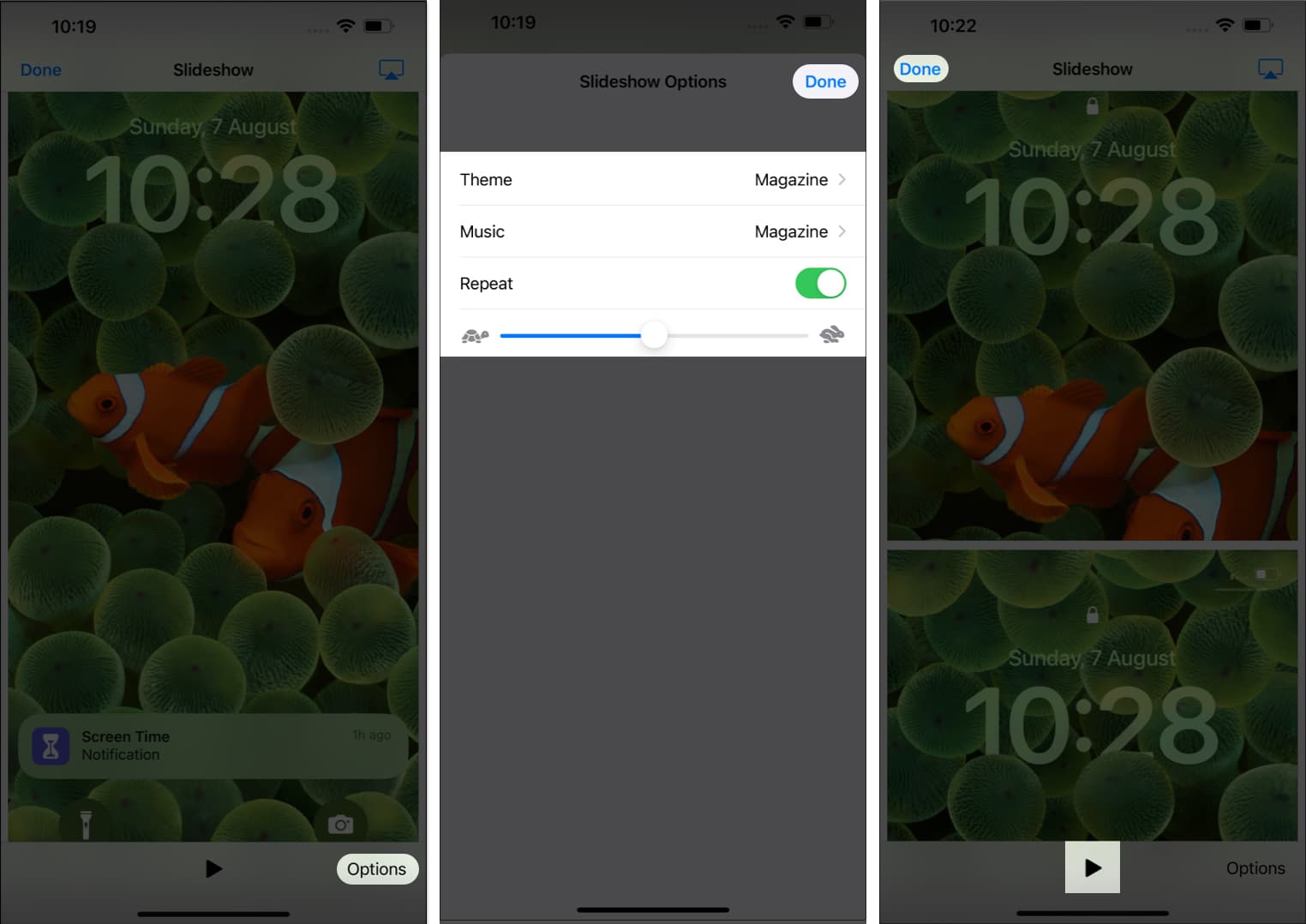
Now that you have successfully created your photo slideshow with music on your iPhone for free, you must want to save or share it, right?
How to save Slideshow on iPhone
Unfortunately, sharing or saving a slideshow created on an iPhone using the Photos app is impossible. But don’t give up yet; I’ve one more trick up my sleeve. There is another best way to make a slideshow video with music on your iPhone. Read the following section to know more.
How to create a slideshow using iMovie on iPhone
- Download and launch iMovie on your iPhone.
- Select Magic Movie under the Start New Project menu.
If you cannot locate this option, swipe up the Start New Project interface. - Choose the pictures you want in the presentation.
- Once selected, tap Create Magic Movie.
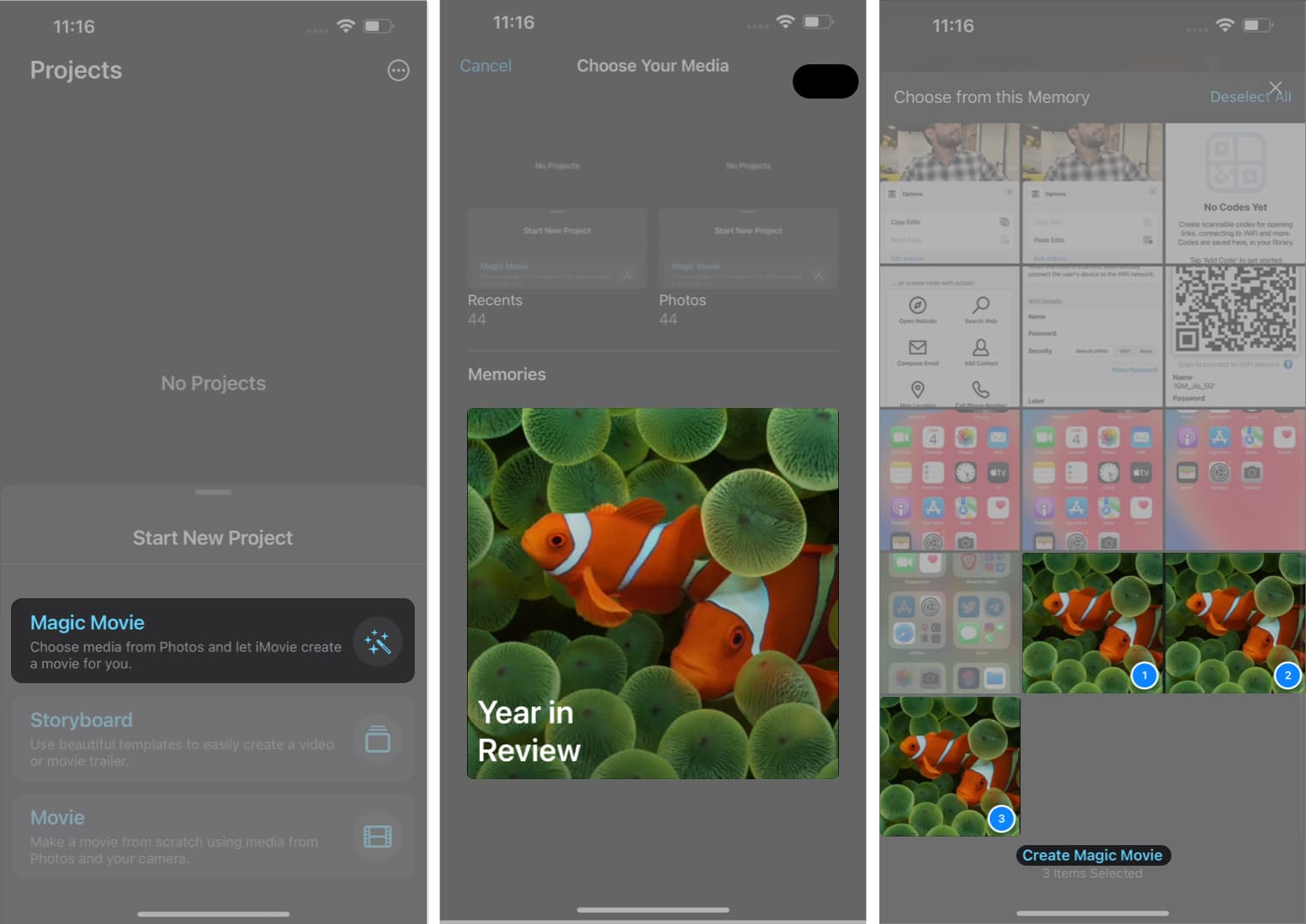
- Now, you will see a movie preview of selected images. Hit the play icon.
- Choose the enlarge option to watch the slideshow in landscape mode.
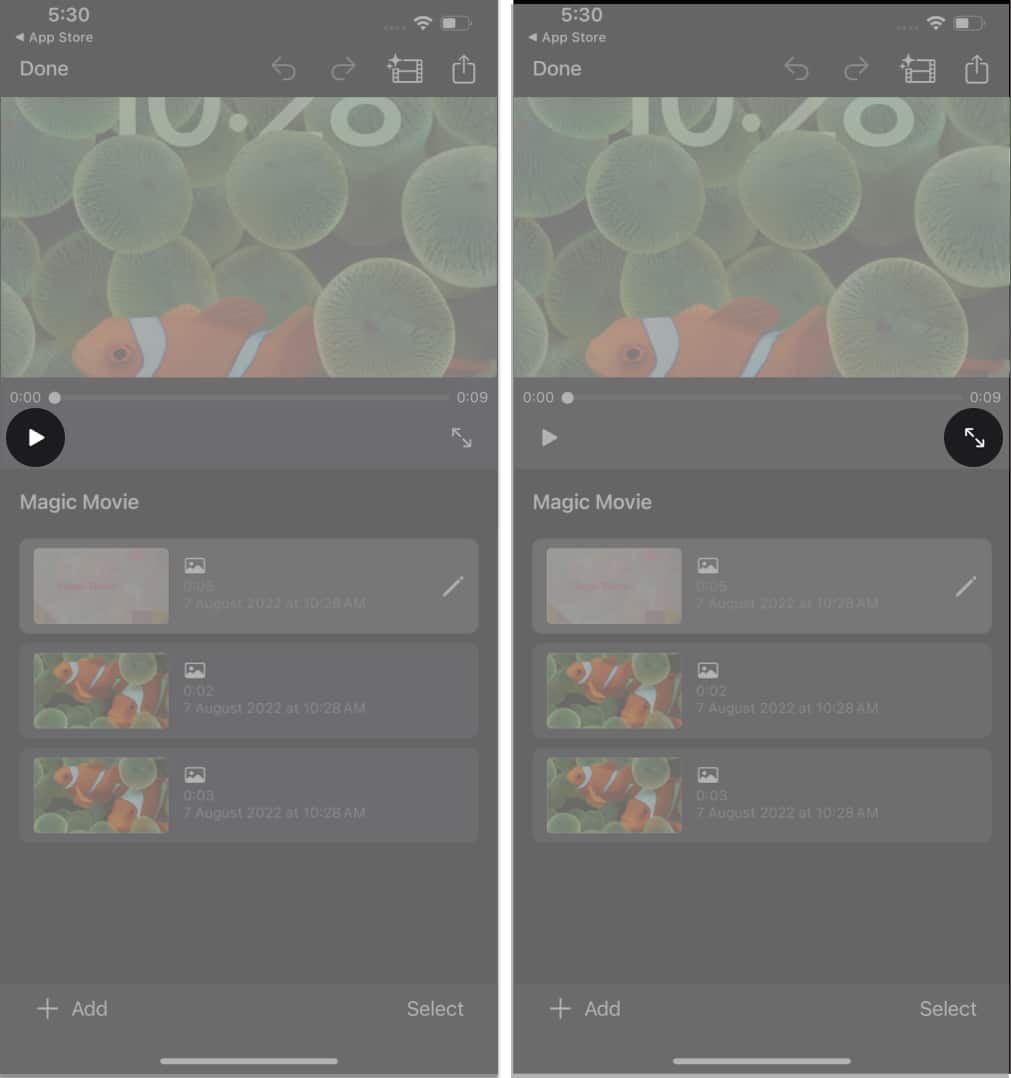
- Select the Add button to add images to the slideshow.
- Here you can select any one of the following:
- Take Video or Photo: Capture live Videos or Photos
- Select from Library: Choose an existing image or video
- Add Clip with Title: Select an existing template featuring a handful Project options.
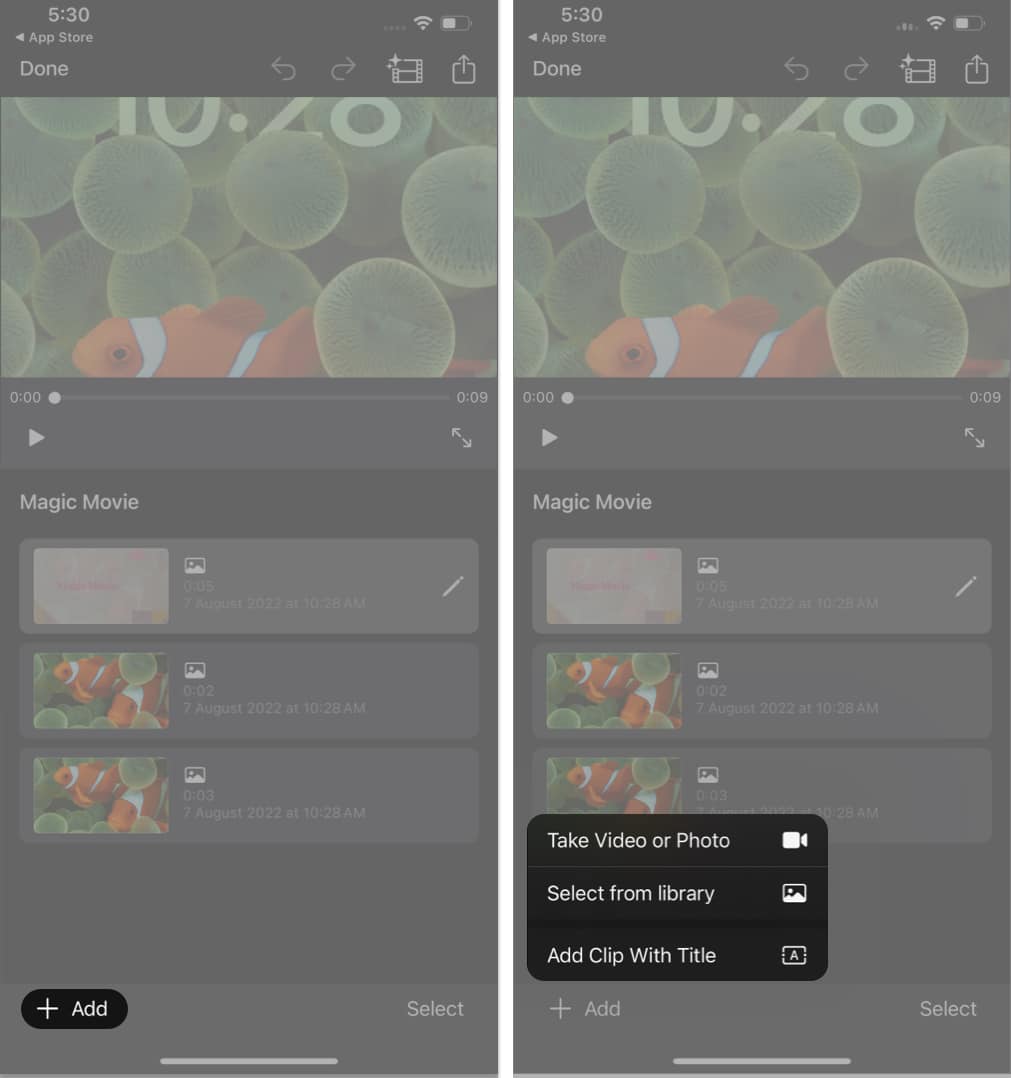
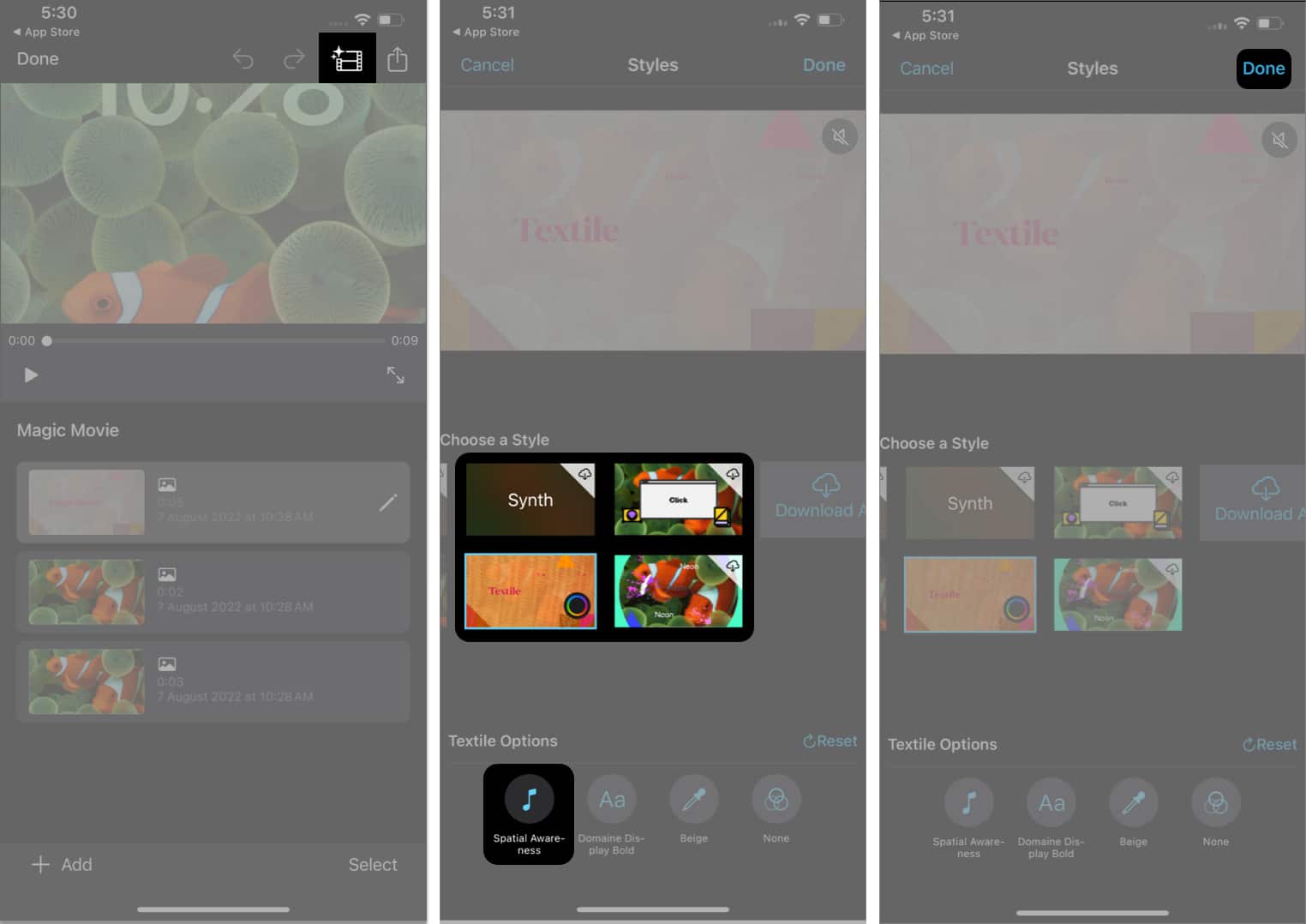
- Tap edit to customize the video picture slideshow:
- Select a style and add music as you desire.
- Once you’re good to go, select Done.
- Finally, tap the share icon → Choose Save Video.
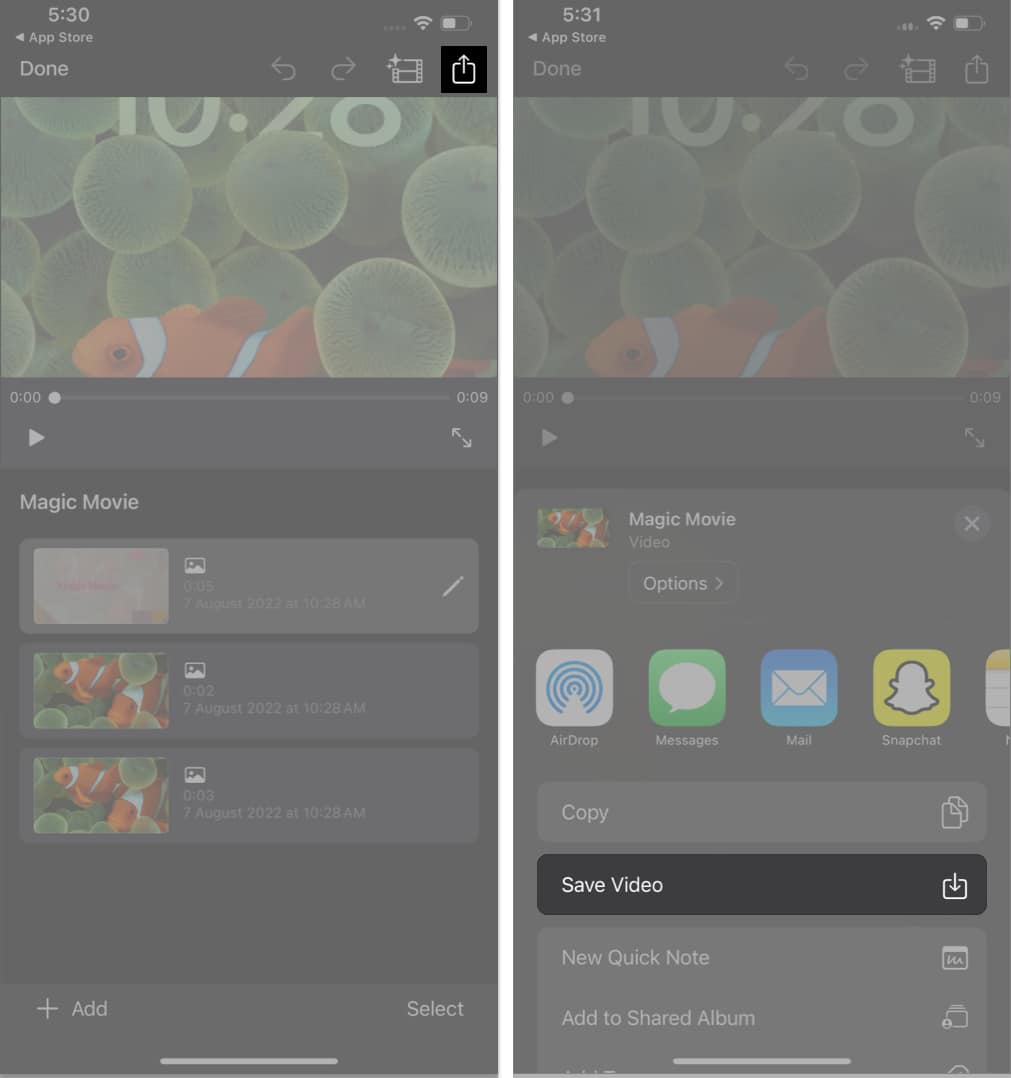


That’s it. After complying with these steps, the following slideshow will be available in the chosen folder. In addition, you can share the slideshow through any medium or app directly from iMovie.
Memories with melodies!
And there you have it, a symphony of moments intricately woven into a beautiful slideshow with the power of music, all crafted within the cozy confines of your iPhone. You can also use your Mac to create a slideshow to transform everyday scenes into a captivating masterpiece.
Thank you for reading. Please take a moment to leave your thoughts in the comment section below.