Apple has officially rolled out iOS 26.5 Developer Beta 1, giving us an early look at what’s coming in the next iPhone update. While this isn’t a major feature-packed release, it introduces a handful of useful improvements and under-the-hood changes that set the stage for future updates.
From enhanced messaging security with RCS encryption to early groundwork for ads in Apple Maps and new “Suggested Places” recommendations, the update focuses more on refining the overall experience rather than adding flashy new features.
As Apple continues testing through later builds like iOS 26.5 Developer Beta’s, these changes are expected to be polished further before the final public rollout.
Things to Consider Before Installing Beta Updates
Before you jump into the installation process, take note of the following precautions:
- Check device compatibility: iOS 26 supports only iPhone 11 and newer models. If you’re using an older device, you won’t be able to see the update.
- Expect bugs and instability: Developer betas often contain glitches, performance issues, and compatibility problems with the app. Avoid installing on your daily-use iPhone unless you’re prepared for hiccups.
- Back up your data: Always create a full backup of your iPhone via iCloud, Finder (on Mac), or iTunes (on Windows). This way, you can revert to iOS 18 if needed without losing important data.
- Use Wi-Fi for downloads: Though mobile data works, Wi-Fi is more stable and faster, especially for large beta updates.
- Charge your iPhone: Ensure your device has at least 50% battery or keep it plugged into power during the installation.
How to Download iOS 26.5 Developer Beta 1 on iPhone
Installing the iOS 26.5 beta 1 is now easier than ever. You no longer need a paid developer account or a beta profile configuration. Here’s how to get started:
Step 1: Enroll in the Apple Beta Software Program
- Open Apple Beta Software Program
- Login with your Apple account.
Step 2: Enable and Install iOS 26 Developer Beta 1
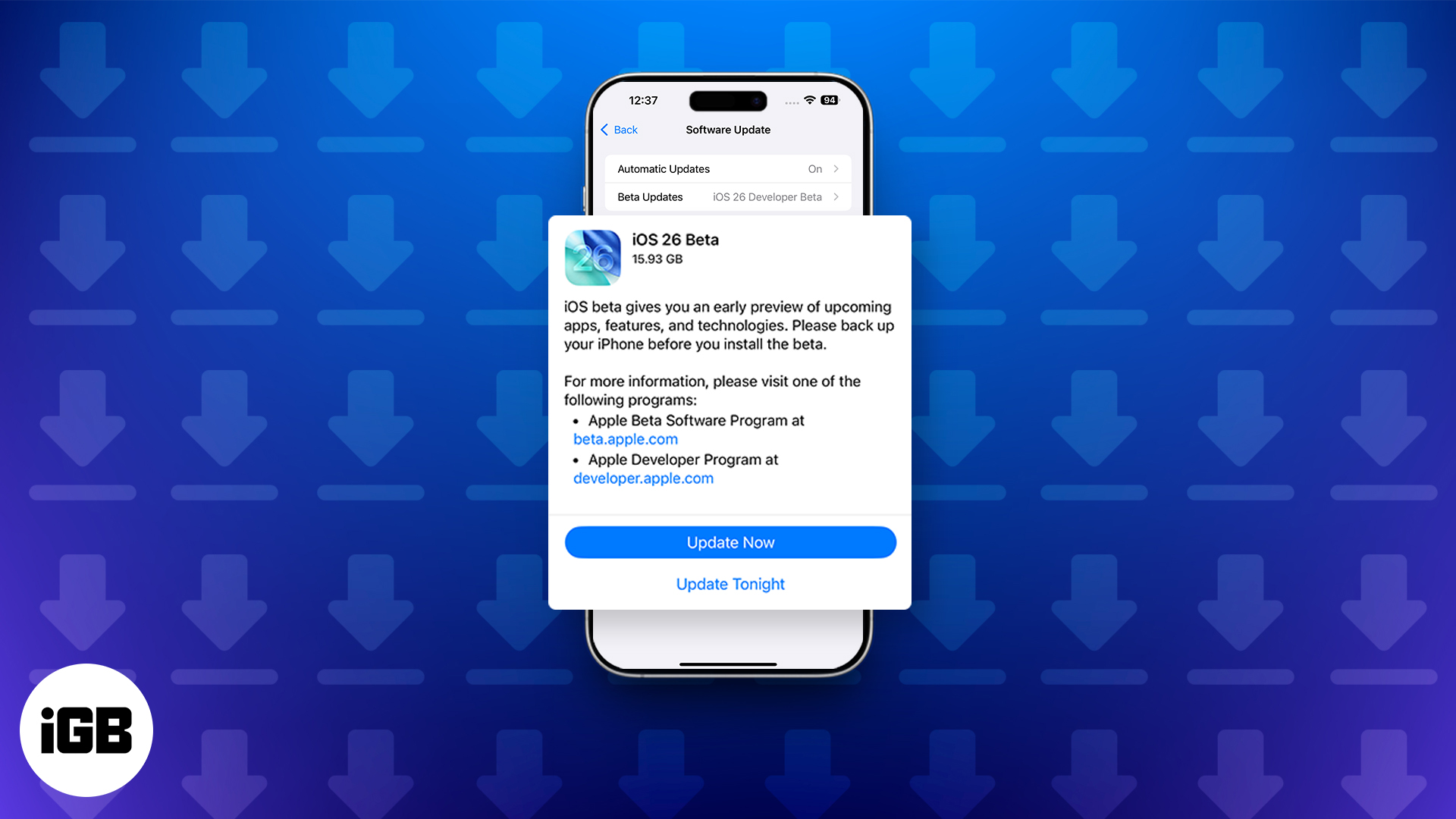
- Open Settings → General → Software Update.
- Here, tap on Beta Updates.
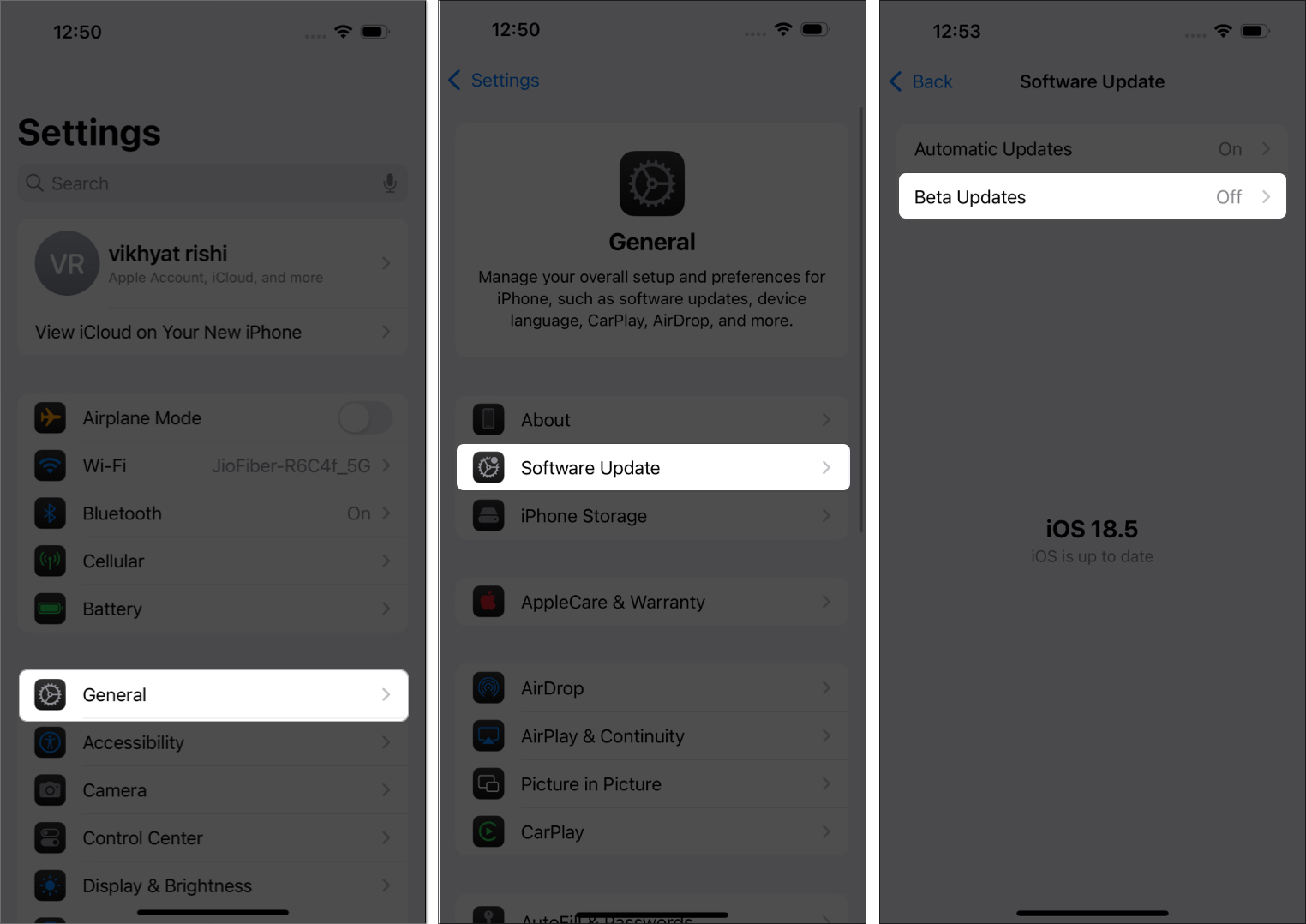
- Select the iOS 26 Developer Beta option on the next menu and tap Back.
- Finally, tap Download and Install when the iOS 26 Developer Beta appears.
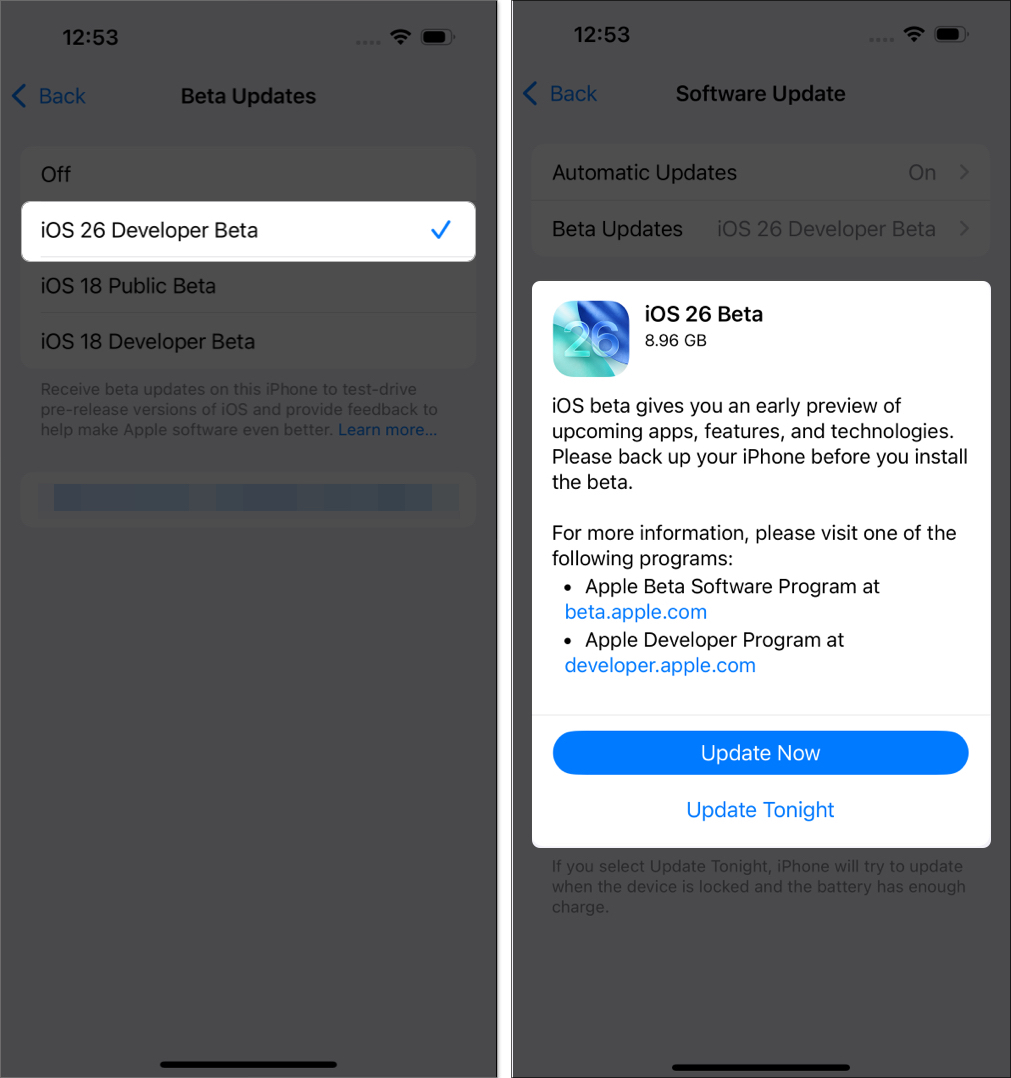
Your iPhone will automatically download and install the beta. The process may require multiple restarts, so don’t worry if your screen briefly goes dark.
That’s it. You’ve successfully installed the iOS 26.5 developer beta 1 on your iPhone. Enjoy the new features, test out apps, and get an early feel for what’s coming in the fall.
What Are You Most Excited About?
Is it the new UI, better battery optimizations, or rumored AI features in iOS 26? Drop a comment and let us know what you’re looking forward to!