


Bitmoji is deeply tied to how Snapchat looks and feels. It appears on your profile, in chats, on Snap Map, and even inside stickers, which is why most users don’t think about removing it until they actually want a change.
That change can happen for different reasons. Sometimes the avatar no longer feels relevant, sometimes you just want a cleaner profile, or you might be planning to create a new Bitmoji from scratch. Whatever the reason, Snapchat does let you unlink your Bitmoji.
Keep reading to learn how to remove your Bitmoji on Snapchat and what happens when you do it.
What happens when you remove Bitmoji
Removing your Bitmoji doesn’t affect your Snapchat account itself; it only changes how your profile appears across the app. Since Bitmoji is integrated into multiple parts of Snapchat, unlinking it removes that visual layer entirely while keeping everything else intact.
Here’s what changes after you remove it:
- Your profile switches back to the default Snapchat icon.
- Your Bitmoji disappears from chats and Friendmoji.
- Bitmoji stickers are no longer available.
- Your avatar is removed from Snap Map.
- Your chats, streaks, friends, and memories remain unchanged.
Note:
If your Bitmoji was created in Snapchat rather than the Bitmoji app, removing it will permanently delete your avatar, along with saved outfits and items.
How to remove or unlink Bitmoji from Snapchat
You can unlink your Bitmoji directly from Snapchat settings, though the option is slightly buried. Here’s how to do it:
- Open the Snapchat app on your phone.
- Now, tap your Bitmoji in the top-left corner.
- Here, tap the Settings (gear) icon.
- Next, locate and tap Bitmoji under the My Account section.
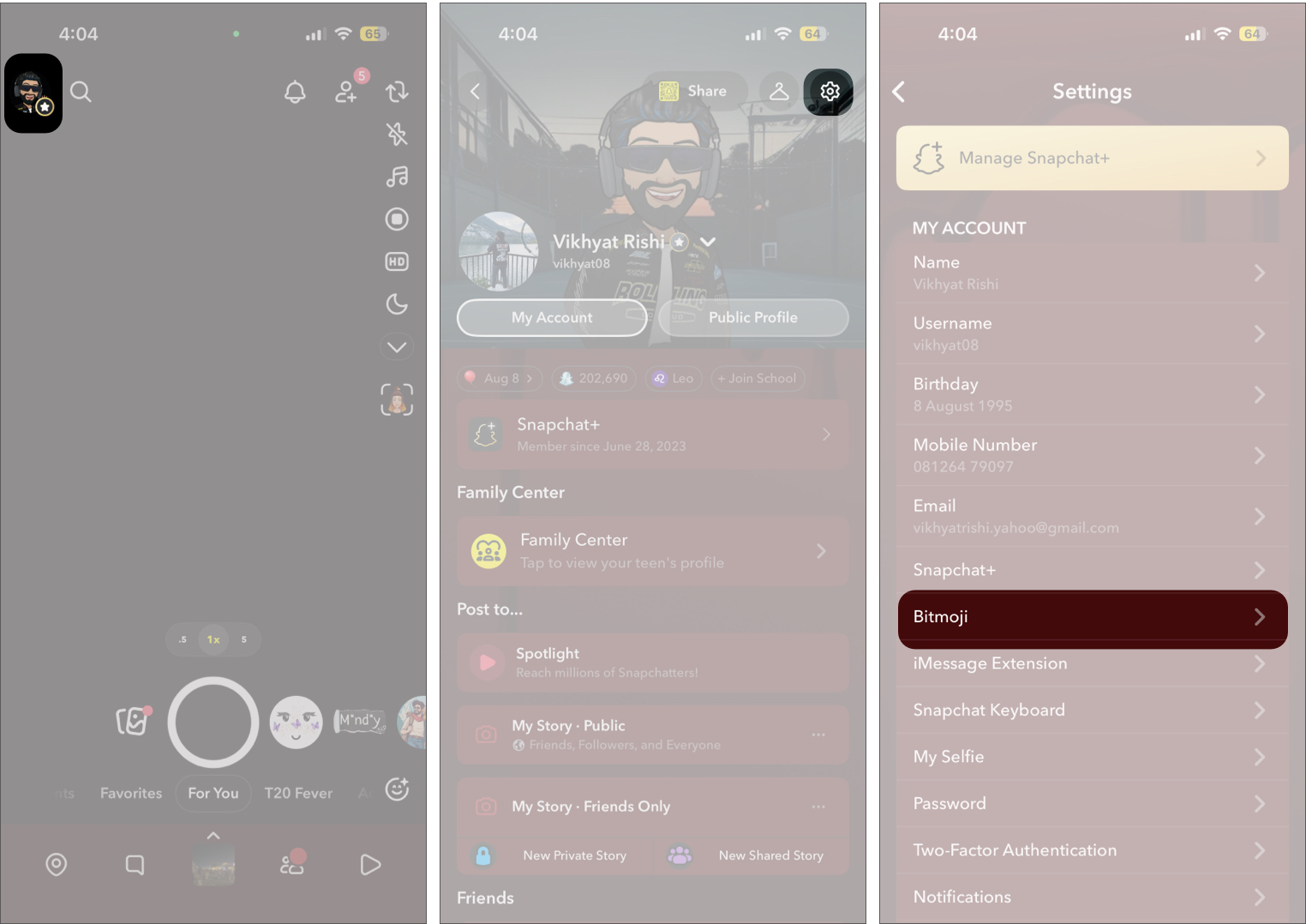
- Finally, tap Remove My Bitmoji, then tap Remove to confirm.
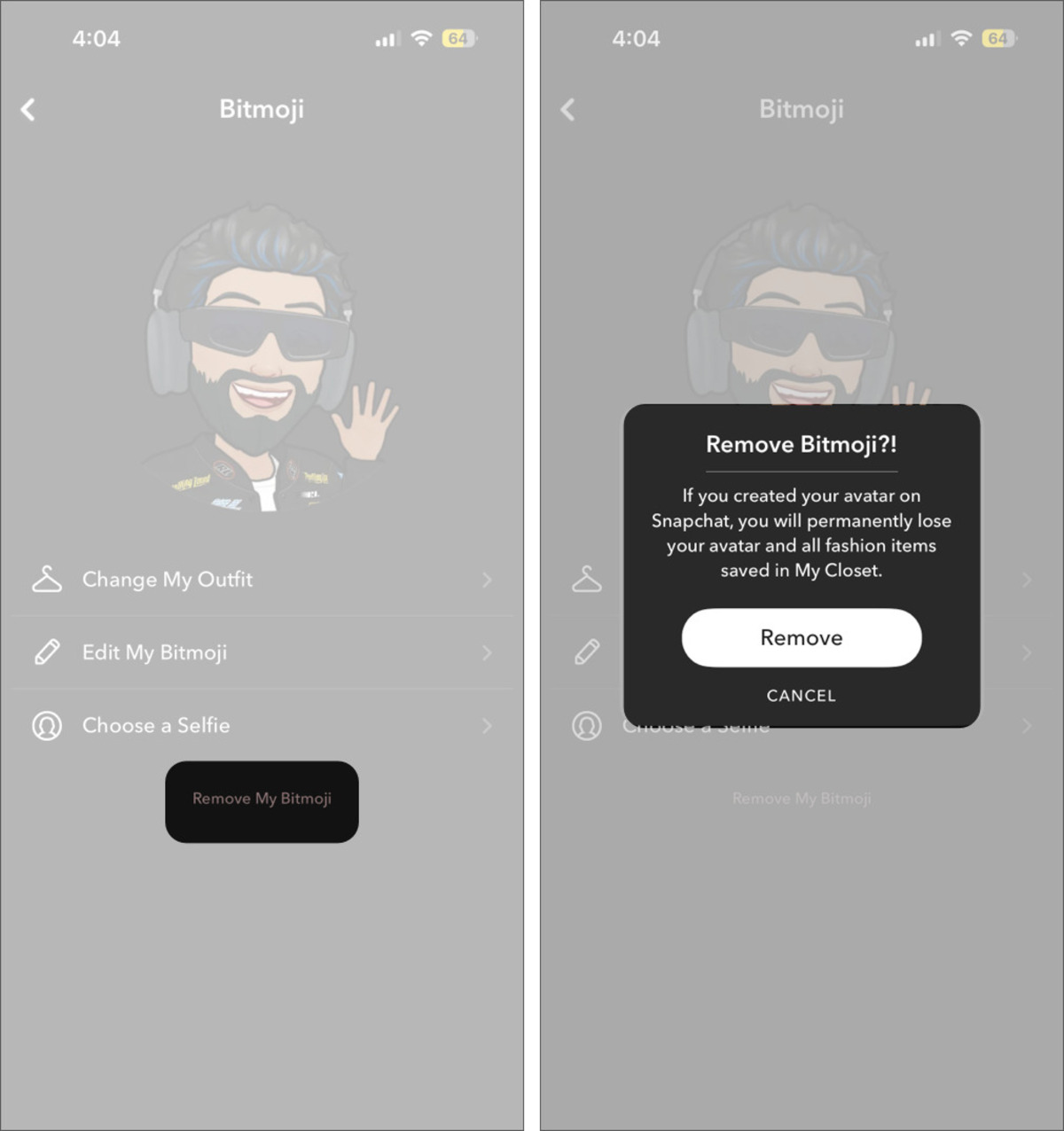
Once removed, your profile picture area will show the default blank silhouette instead of your Bitmoji avatar.
How to control who can use your Bitmoji on Snapchat
Bitmoji is not just your profile avatar on Snapchat. It also shows up in stickers, Friendmoji, and shared interactions inside chats. That means other people can sometimes use your Bitmoji in conversations, even when you are not actively sending it. Not everyone may be comfortable with that.
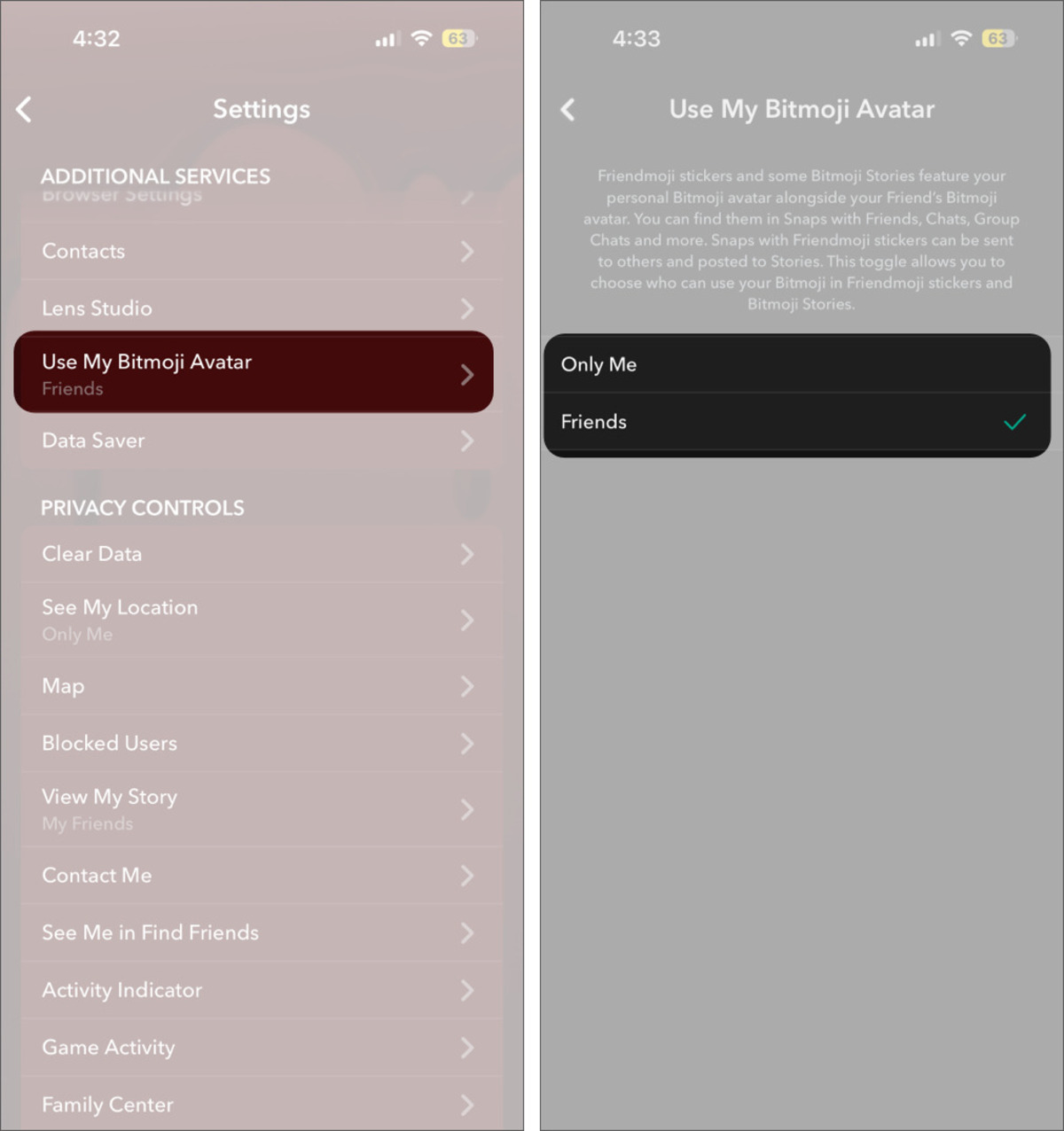
If you want more control over where your Bitmoji appears and who can use it, Snapchat offers a way to limit that. Here’s how:
- Head to your Snapchat account settings.
- Scroll down to the Additional Services section and tap Use My Bitmoji Avatar.
- Choose either Only Me or Friends.
How to create a new Bitmoji on Snapchat
If you change your mind later, you can always create a new Bitmoji.
- Go to your Snapchat account settings.
- Select Bitmoji under My Account.
- Tap the Create my avatar button and follow the on-screen instructions.
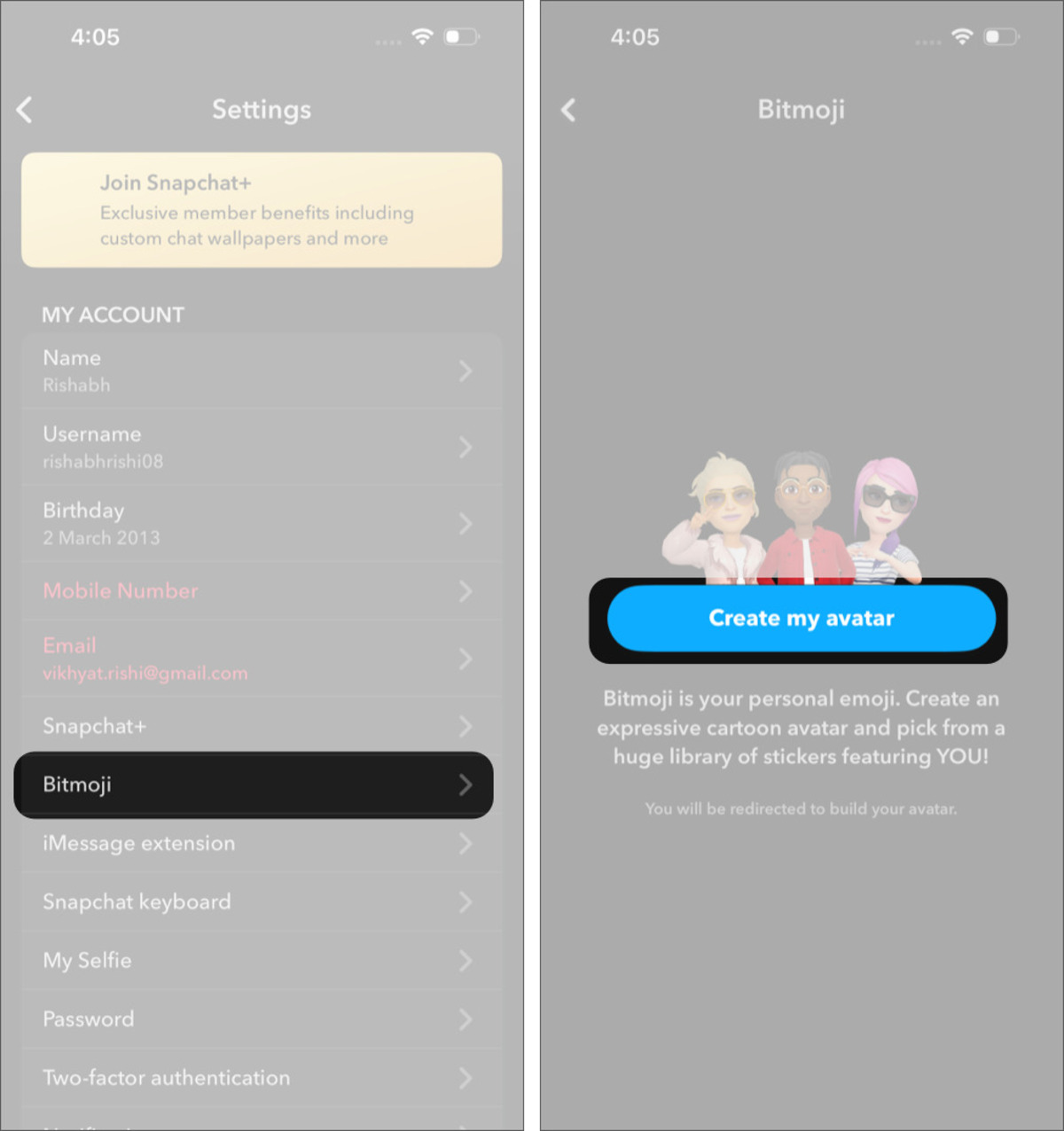

Keep in mind that this creates a completely new Bitmoji. It will not restore the one you removed earlier.
Should you remove your Bitmoji from Snapchat?
If you use Bitmoji often in chats or stickers, keeping it makes sense. If it’s something you rarely pay attention to, removing it can make your profile feel cleaner without losing anything important.
Since you can always create a new Bitmoji later, it’s easy to experiment and see what you prefer.