
How to Clear Safari Cache, History and Cookies on iPhone or iPad
Stuck in login loops that refuse to clear, pages half loading, spinner just sitting there? The fix is simple, clear Safari browsing data on your iPhone today.
- Clearing Safari data helps fix browser issues like slow loading, login errors, or stuck pages by wiping history, cookies, and cached files.
- You can clear all data or just parts of it—choose to remove everything, only cookies/cache, or site data for a specific website.
- Each data type serves a role: history tracks visited sites, cache speeds up loading, and cookies manage logins and preferences.
- You’ll be logged out of websites and may lose cart items, but saved passwords, bookmarks, and autofill info remain intact.
- If Clear History is greyed out, check restrictions under Screen Time or device management; avoid blocking all cookies to keep websites working.
Safari feel slow on your iPhone? Stuck in login loops that refuse to clear, pages half loading, spinner just sitting there? The fix is simple, clear Safari browsing data on your iPhone today. Removing Safari history, cache, and cookies is basic digital hygiene. It clears built up site data that drags pages, strips tracking cookies that nibble at privacy, and often kicks stubborn loading errors back into line. Quick reset.
This guide covers every method to safely clear Safari data. You’ll learn when to use each approach, what data gets removed, and what stays protected, including saved passwords in iCloud Keychain and passkeys. Plus troubleshooting tips for common issues.
What are History, Cache, and Cookies in Safari?
Understanding what you’re clearing helps you make informed choices about your iPhone’s Safari data:
- Browsing History is the chronological list of sites you’ve visited. Safari keeps these URLs so you can revisit pages and use features like search suggestions that reference prior browsing.
- Cache means temporary files like images, scripts, and stylesheets that websites save on your device. This stored data helps pages load faster on repeat visits by avoiding another download of identical content.
- Cookies are small text files that websites use to remember details about you. They can store login credentials, shopping cart contents, site preferences, and also tracking data for advertising purposes.
Before You Start: Key Considerations
Before clearing Safari data on iPhone, understand what will change:
What You’ll Lose:
- You’ll be signed out of websites and need to log in again
- Site preferences (like dark mode settings) will reset to defaults
- Shopping carts will empty
- Browsing history will disappear (depending on method chosen)
What Stays Safe:
- Autofill information remains intact
- iCloud Keychain passwords are preserved
- Bookmarks and Reading List remain unchanged
- Downloaded files stay in your Downloads folder
Note:
How to Clear Safari Data on iPhone or iPad (Detailed Steps)
The following three methods let me choose exactly which Safari bits get tossed from my iPhone or iPad. Pick the method that fits your privacy comfort level and the way you browse. I do this when Safari feels sluggish or pages half-load, and the fix lands fast. Each method needs only a couple of taps, then the change is live right away, no reboot, no waiting.
Clear Everything (History, Cache, and Cookies)
- Open the Settings app on your iPhone.
- Scroll down, tap Apps, then scroll again to find Safari.
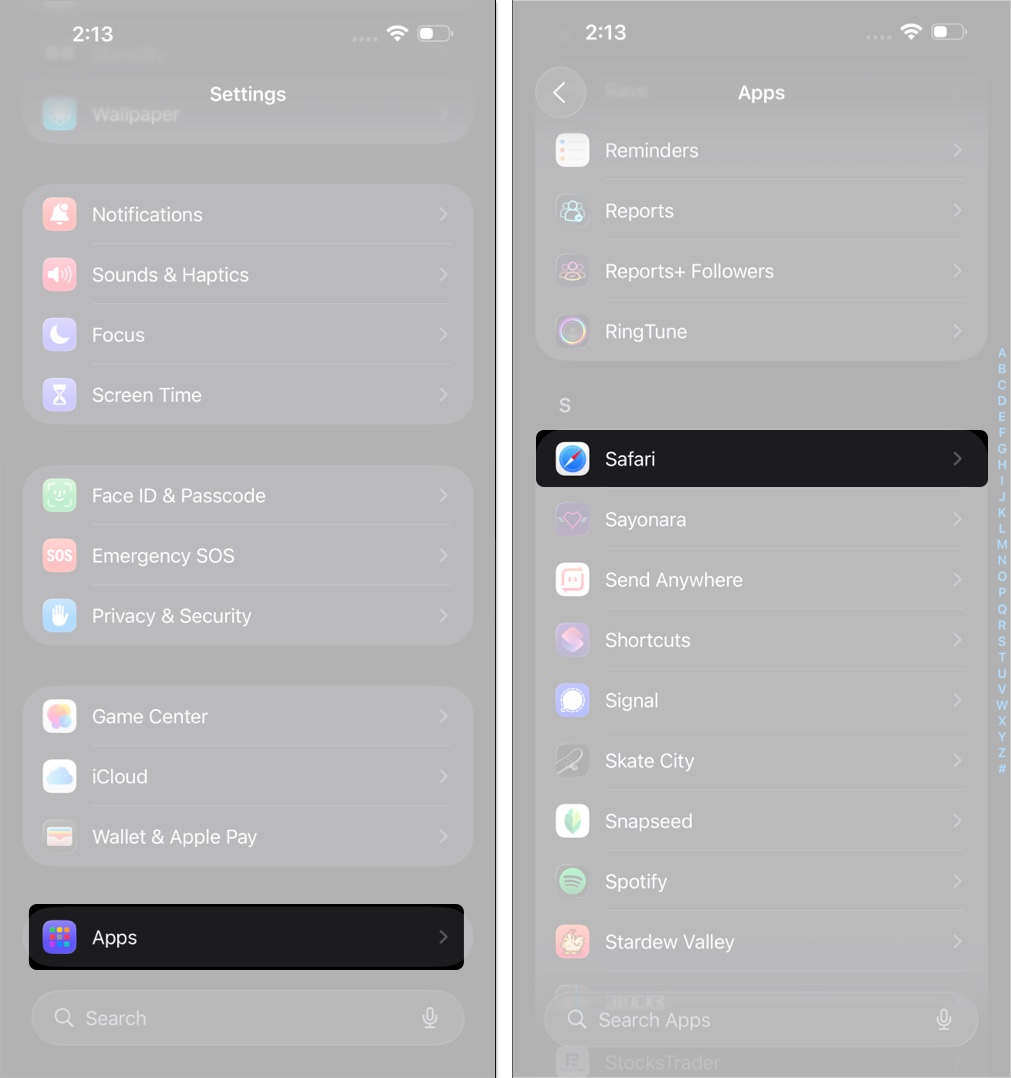
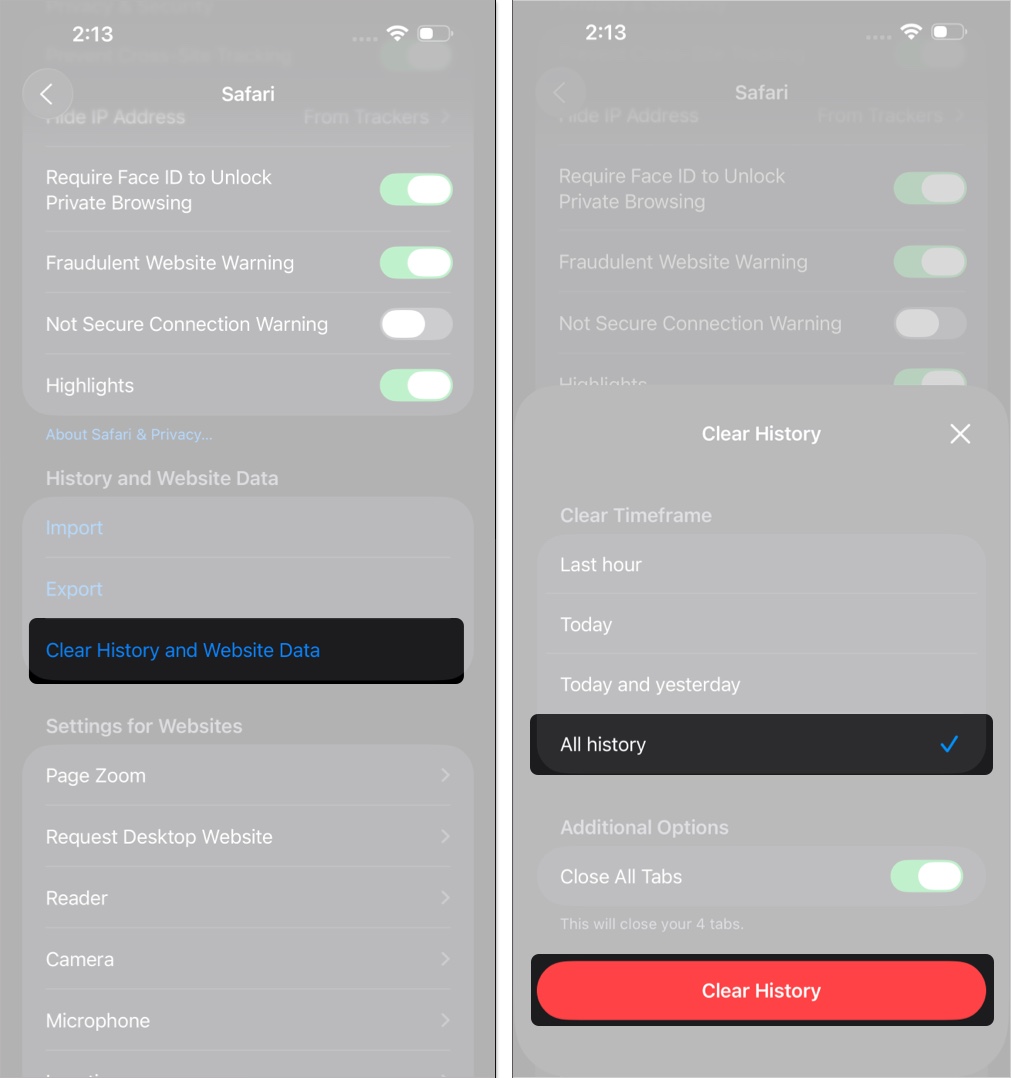
- Tap Safari, then scroll to Clear History and Website Data, it appears as a blue link.
- Tap Clear History and Website Data, choose All history in the confirmation sheet.
- Optionally toggle Close All Tabs, then tap Clear History to finish.
Keep History, but Clear Cookies & Cache
Use this method to remove tracking data and cached files while preserving your browsing history.
- Open the Settings app on your iPhone
- Scroll down, tap Apps, then scroll again to find Safari
- Tap Safari, then scroll down and tap Advanced
- Tap Website Data
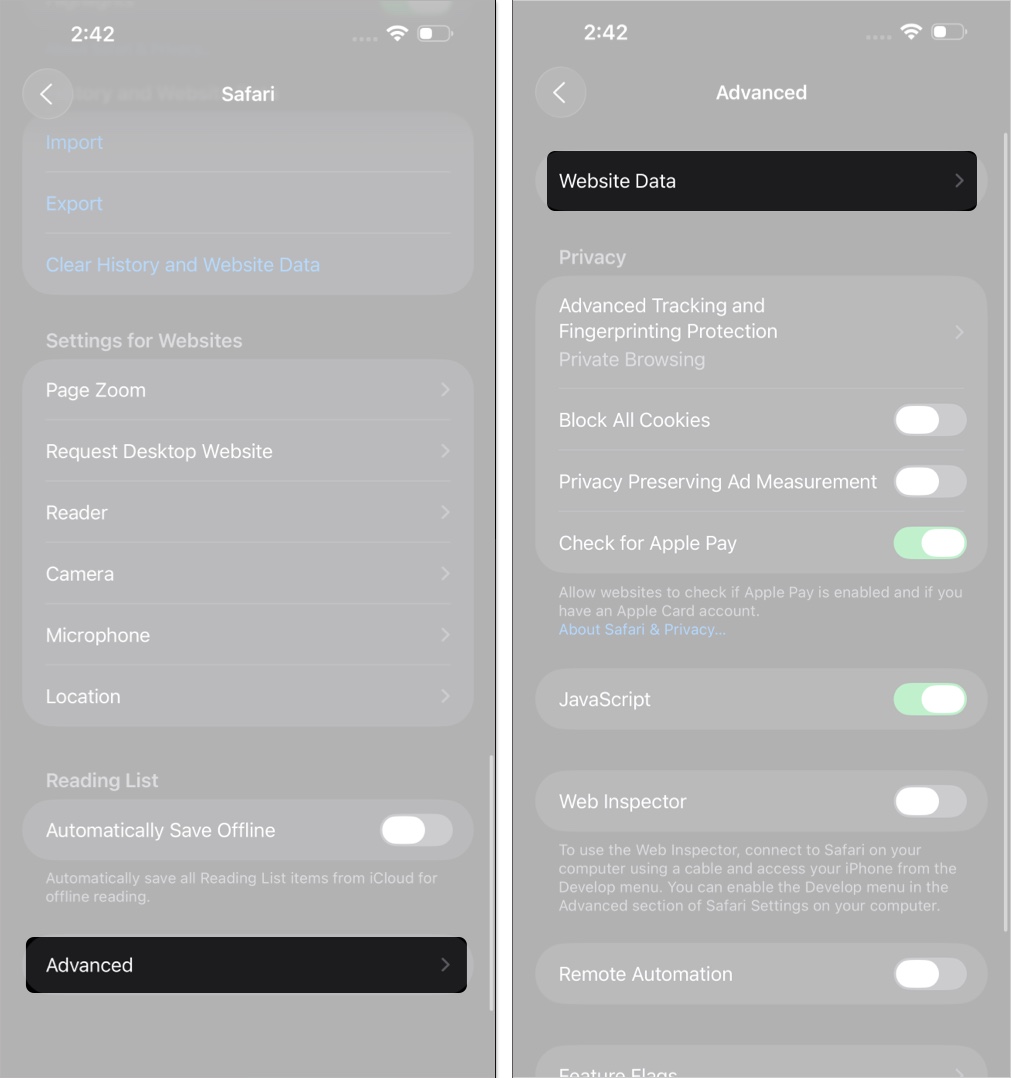
- Tap Remove All Website Data at the bottom
- Confirm by tapping Remove Now
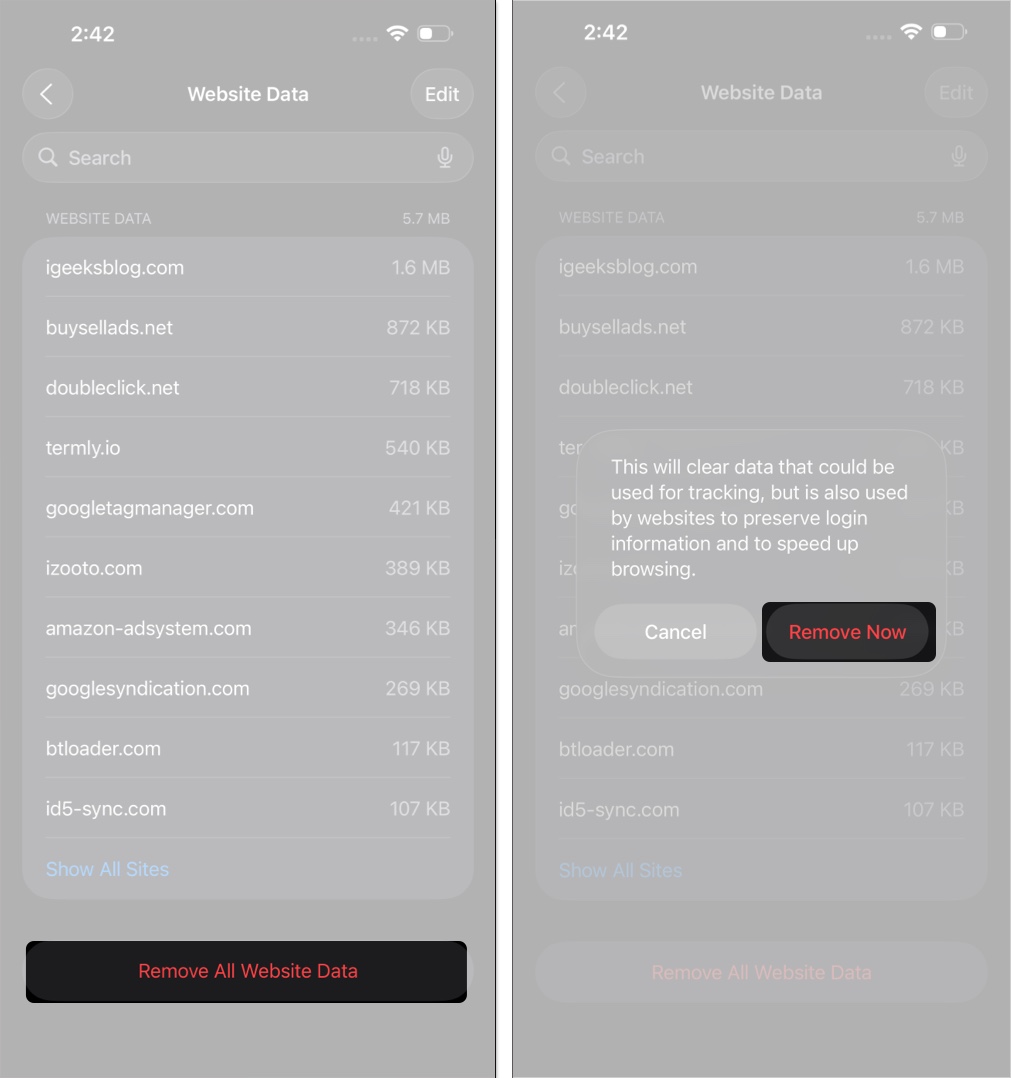
This deletes cookies and cached data, while keeping your browsing history intact for future reference.
Clear Data for a Single Website
Target specific problematic websites without affecting other stored data:
- Navigate to Settings → Apps → Safari → Advanced → Website Data.
- Use the search bar at the top to find the specific website, for example type “facebook.com.”
- Swipe left on the website name in the results.
- Tap the red Delete button that appears.
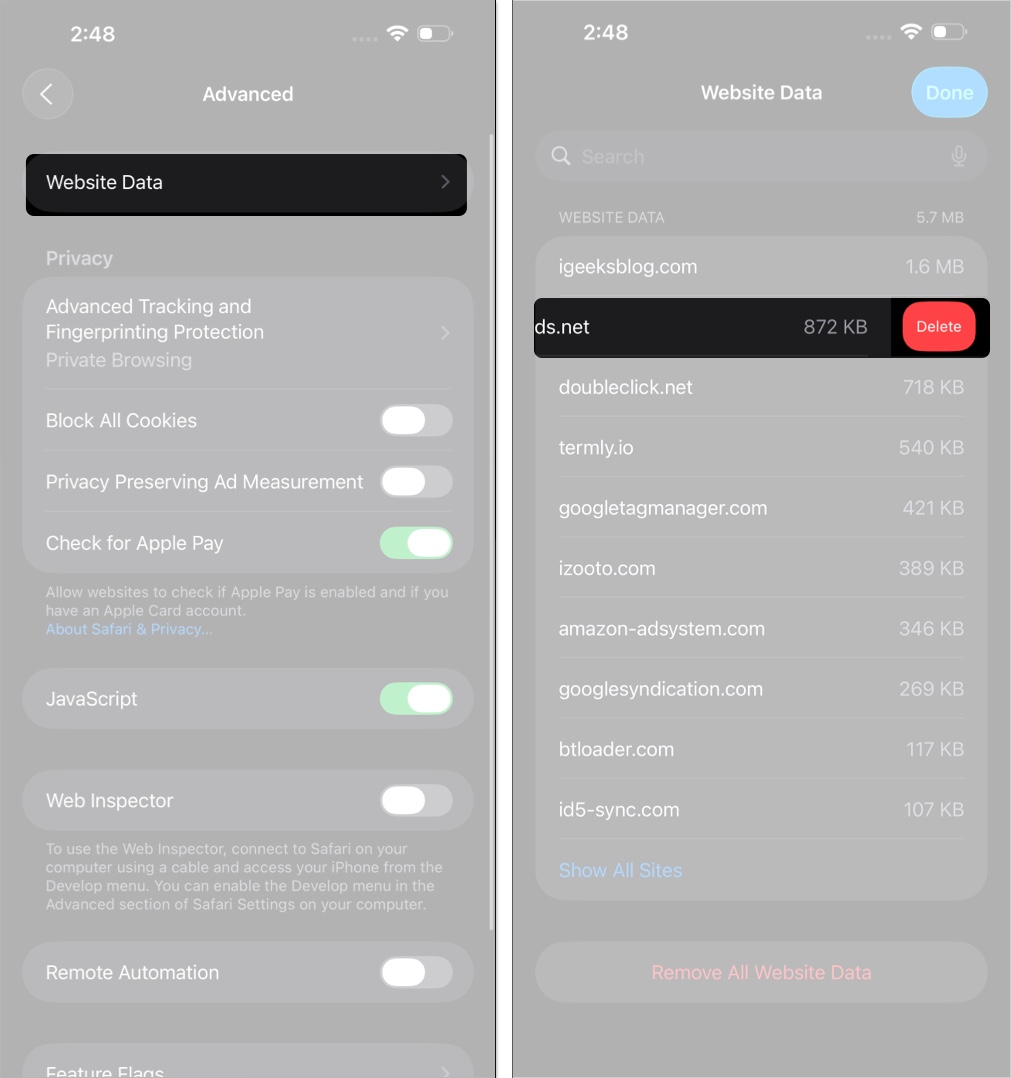
After clearing data for that site, reload the page in Safari to see immediate improvements in loading speed and functionality, especially on heavier sites. If you want, you can even customize Safari to your preference in a few simple steps.
Why is “Clear History and Website Data” Greyed Out? (Troubleshooting)
If the Clear History and Website Data button looks greyed out and does not respond, Screen Time restrictions are usually blocking this change.
Here’s how to fix it:
- Open Settings, scroll down tap Screen Time
- Tap Content & Privacy Restrictions
- Enter your Screen Time passcode if prompted
- Toggle on Content & Privacy Restrictions
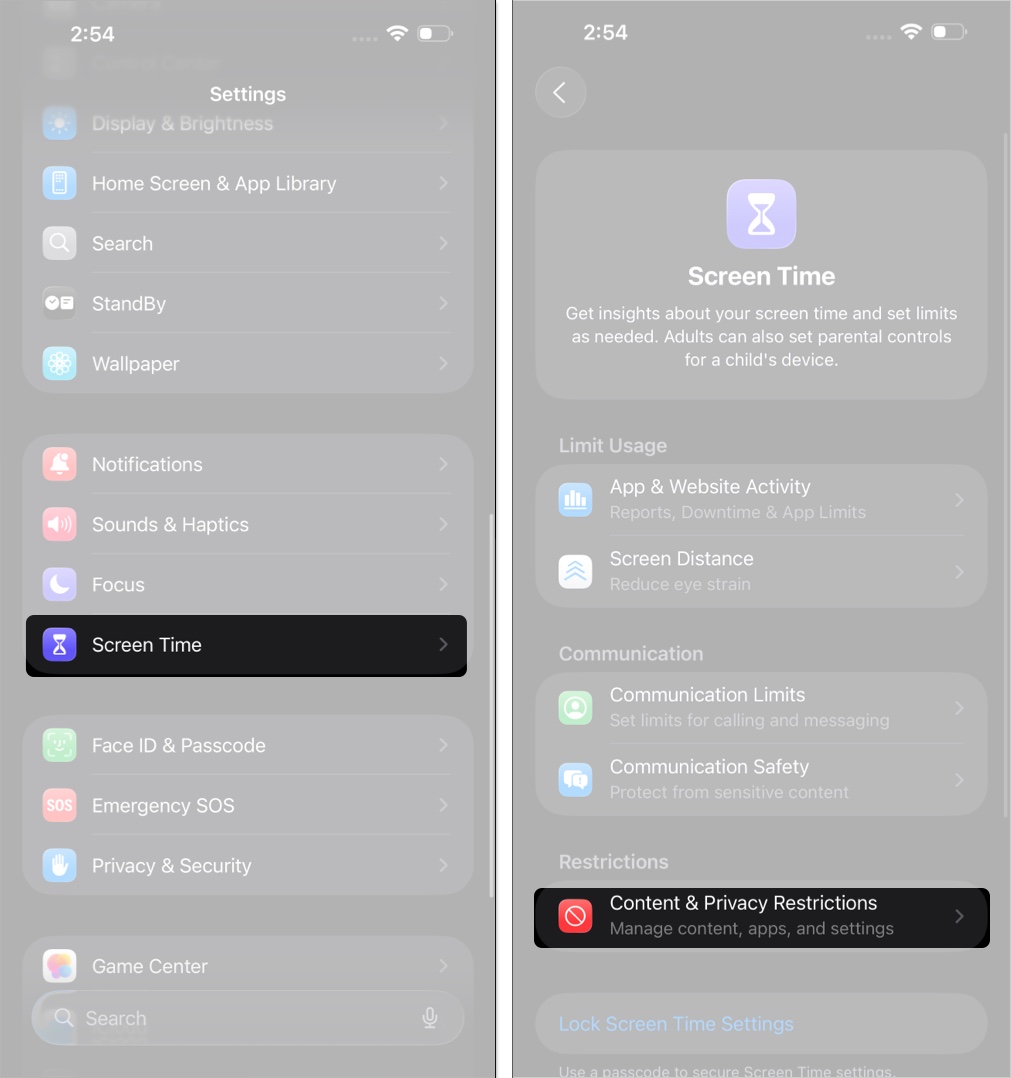
- Tap App Store, Media, Web, & Games
- Tap Web Content, and select Unrestricted
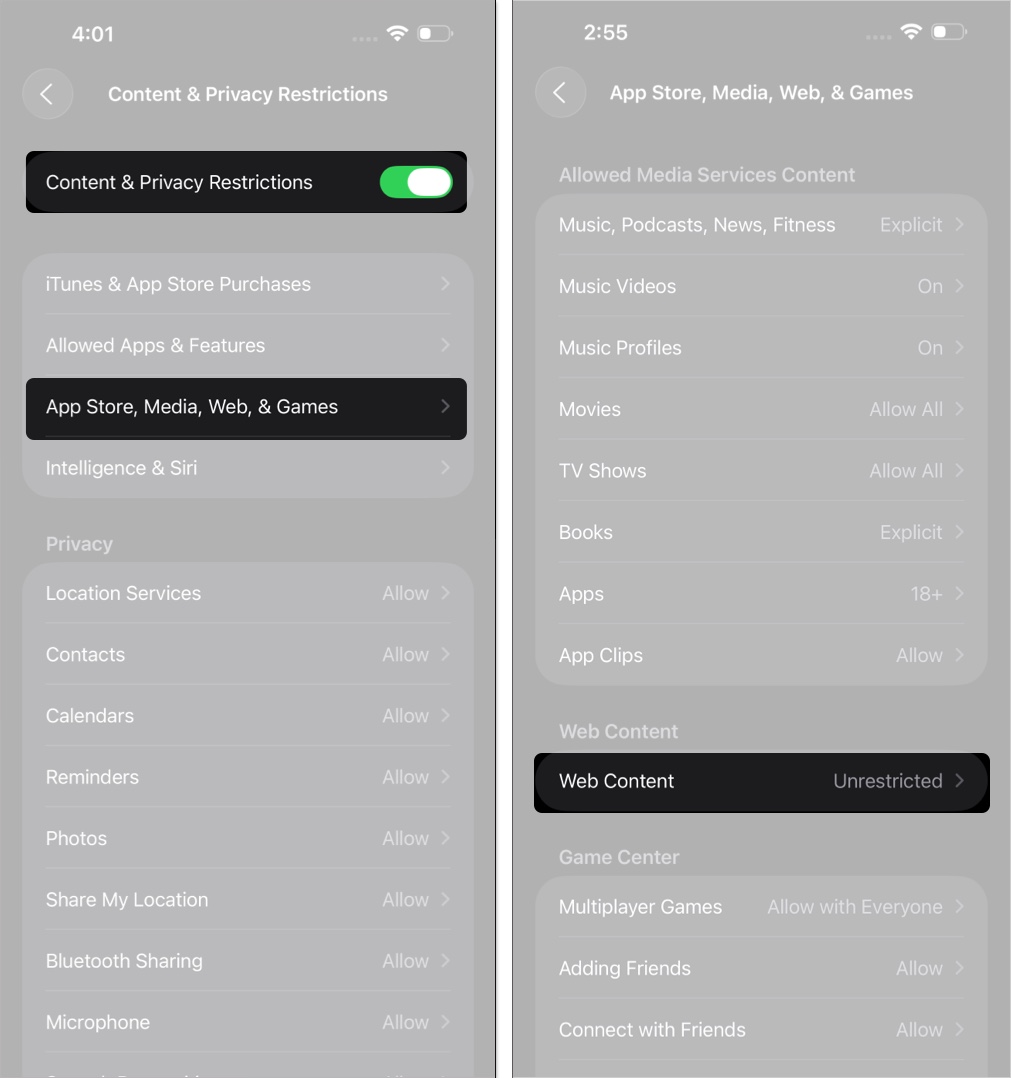
After making this change, return to Settings → Apps → Safari. The Clear History and Website Data button should now be active and responsive.
Note:
How to Block Cookies in Safari on iPhone
If maximum privacy is the goal, Safari includes a switch to block all cookies. Proceed with care, though, because this choice can have real side effects.
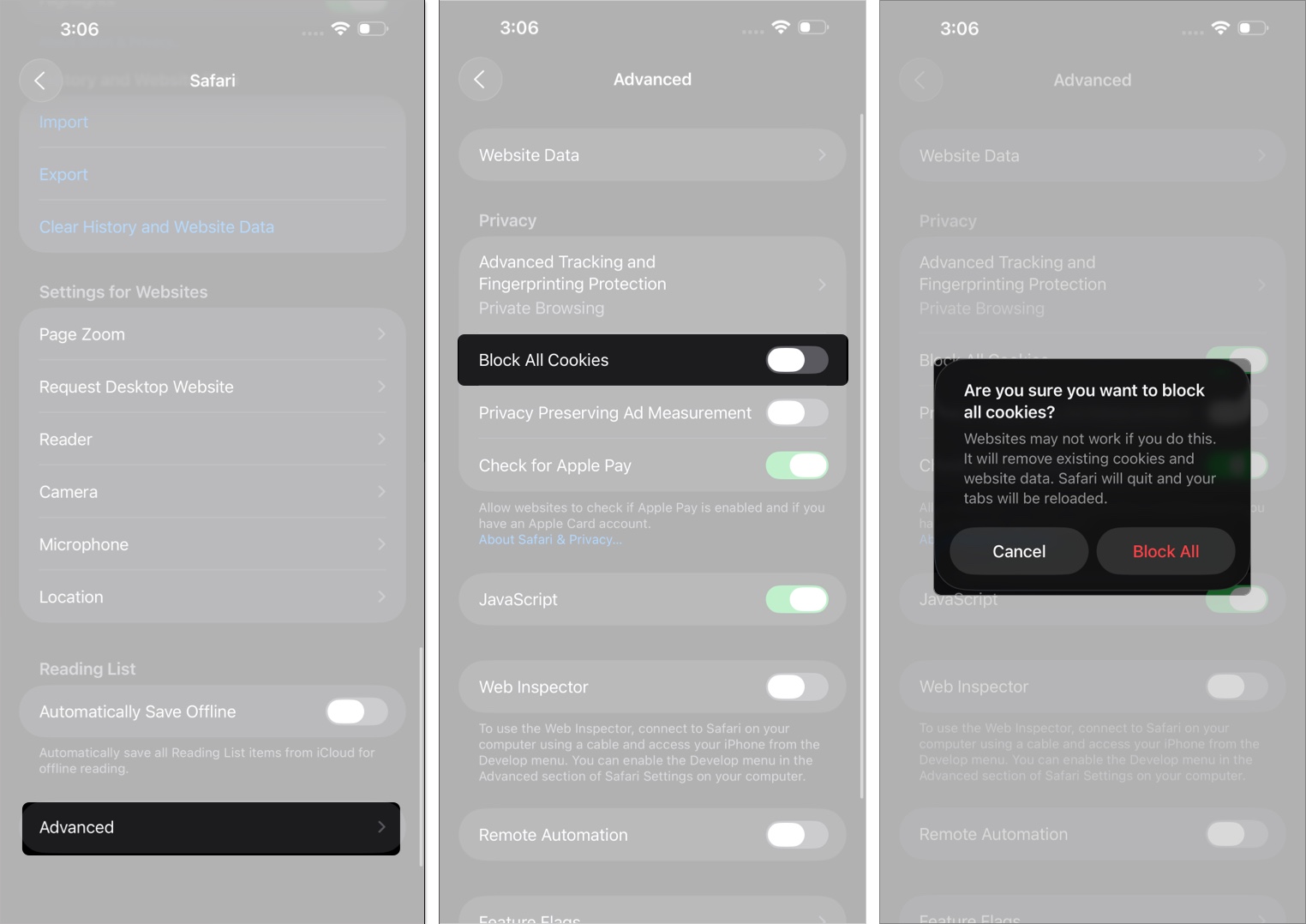
- Go to the Settings → Apps → Safari → Advanced.
- Under Advanced, toggle on Block All Cookies.
- Tap Block All once prompted.
Important:
Warning: Turning on Block All Cookies breaks features on many websites. Sign-ins fail, shopping carts forget items, and site preferences do not stick between visits.
Better Alternative: For most people, keep Block All Cookies off, and leave Prevent Cross-Site Tracking enabled. This limits advertising trackers while still allowing the essential cookies that keep websites working properly.
Your Safari Cleaning Checklist
- Clear Everything in Settings > Safari for a full privacy and performance reset when pages stall or half load
- Keep Your History by clearing cookies and cache only in Advanced > Website Data, leaving visits intact
- Troubleshoot a Greyed Out button by checking Screen Time for content restrictions that block clearing
- Use Private Browsing for temporary sessions that leave no trace on your device, handy on shared phones
- Rest assured that clearing data does not delete saved passwords or bookmarks, those stay put
- Perform regular cleanups to fix website glitches and protect your privacy, especially after updates
Final Thoughts
Regularly clearing Safari browsing data helps keep an iPhone responsive and protects personal privacy. Use a full wipe when a fresh start is needed, or clear only problem sites when a smaller fix makes sense. Either route is quick and yields smoother pages, fewer reloads, and fewer tracker leftovers.
Make Safari cleanup part of a monthly routine. With less old data, the phone feels snappier, pages open faster, and privacy settings hold. Control stays with the user, not with leftover cookies.
Pair this with basic upkeep. Update to the current iOS release, review storage in Settings to free space, and remove unused apps. Together, these steps keep performance steady and reduce odd site glitches.
Frequently Asked Questions
Topics

Written by
Mehak SiddiquiMehak has a master’s degree in communication and over ten years of writing experience. Her passion for technology and Apple products led her to iGeeksBlog, where she specializes in writing product roundups and app recommendations for fellow Apple users. When not typing away on her MacBook Pro, she loves being lost in a book or out exploring the world.
View all posts →