
How to add and manage Favorite contacts on your iPhone
Easily add, manage, and customize Favorite contacts on your iPhone for quick access.
Did you know you can quickly access your most contacted numbers with just a tap, instead of going through a tedious process to connect with them? It’s much more efficient! In this guide, I’ll show you how to add, manage, and customize Favorite contacts on your iPhone.
How to add Favorite contacts on iPhone
iOS allows you to add contacts to Favorites through the Phone app or directly from a contact card. Here’s how you can do it:
Method 1: From the Phone app
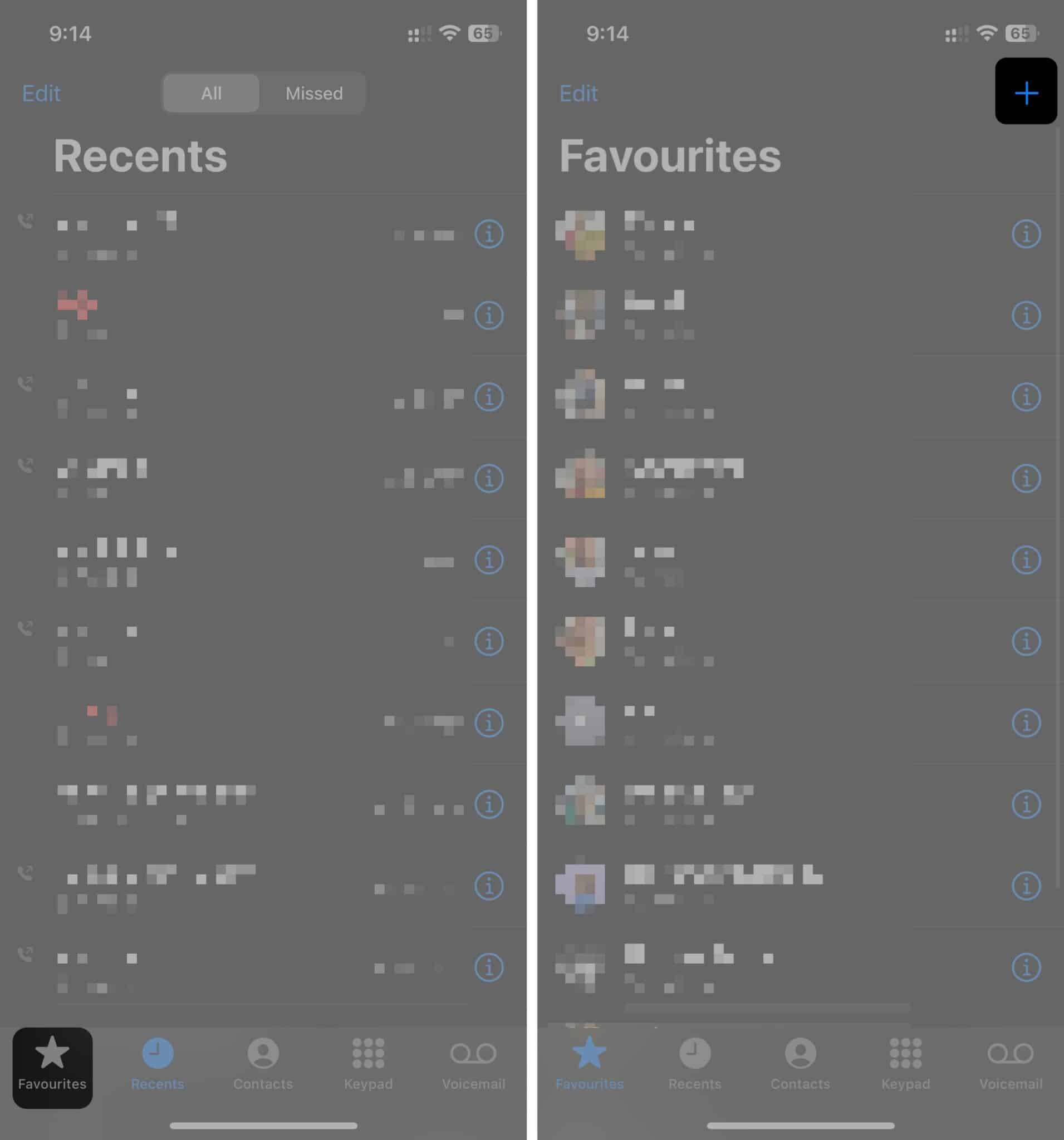
- Open the Phone app → Select the Favorites tab.
- Tap the Plus (+) button.
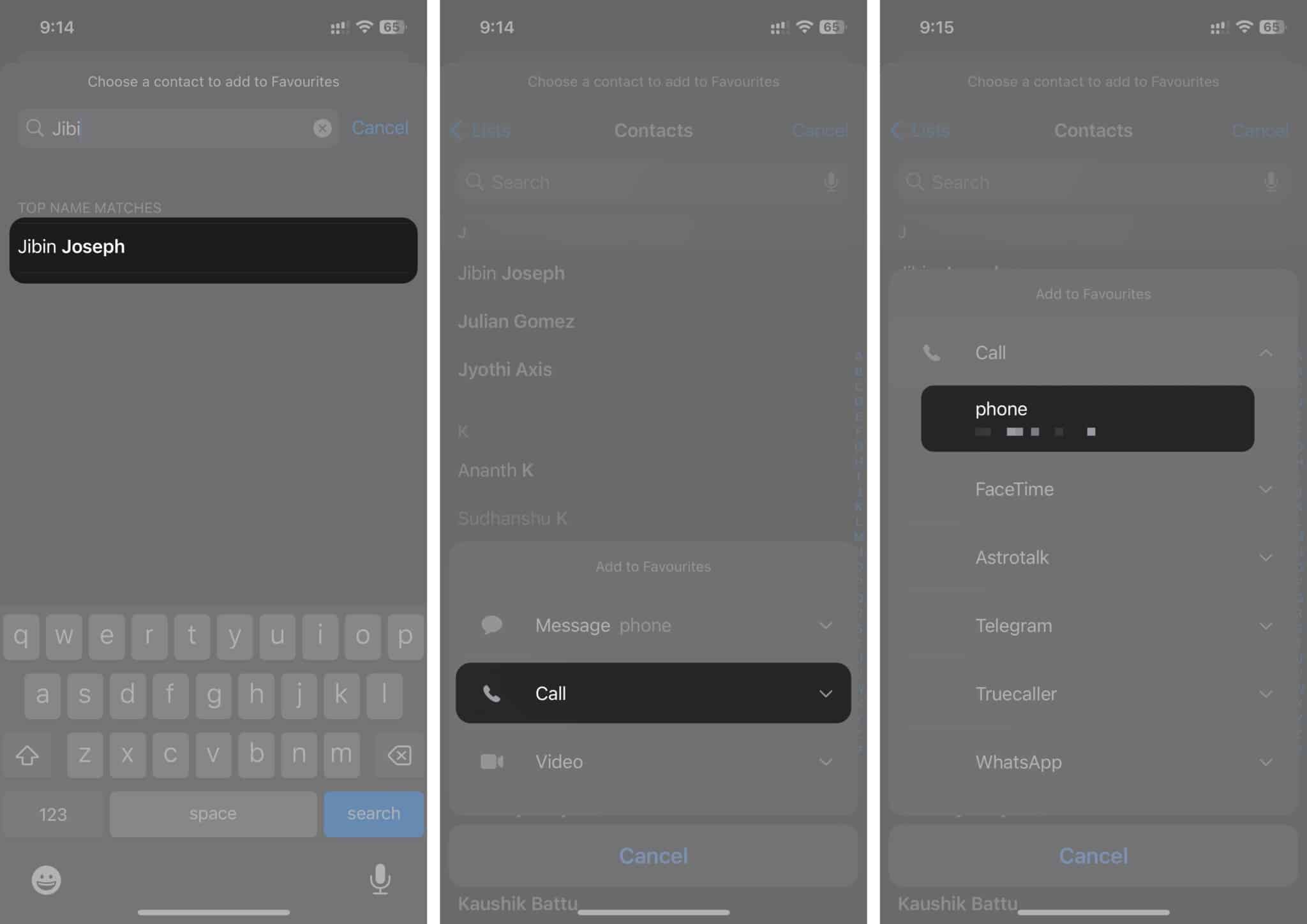
- Select the contact you want to add to Favorites. You can use the search bar at the top to find a specific contact quickly.
- Choose the default contact method (call, message, FaceTime, etc.) Tap the down arrow to see more options.
Method 2: From contact card
- Open the Contacts app or go to the Contacts tab in the Phone app.
- Select the contact you want to add.
- Tap Add to Favorites.
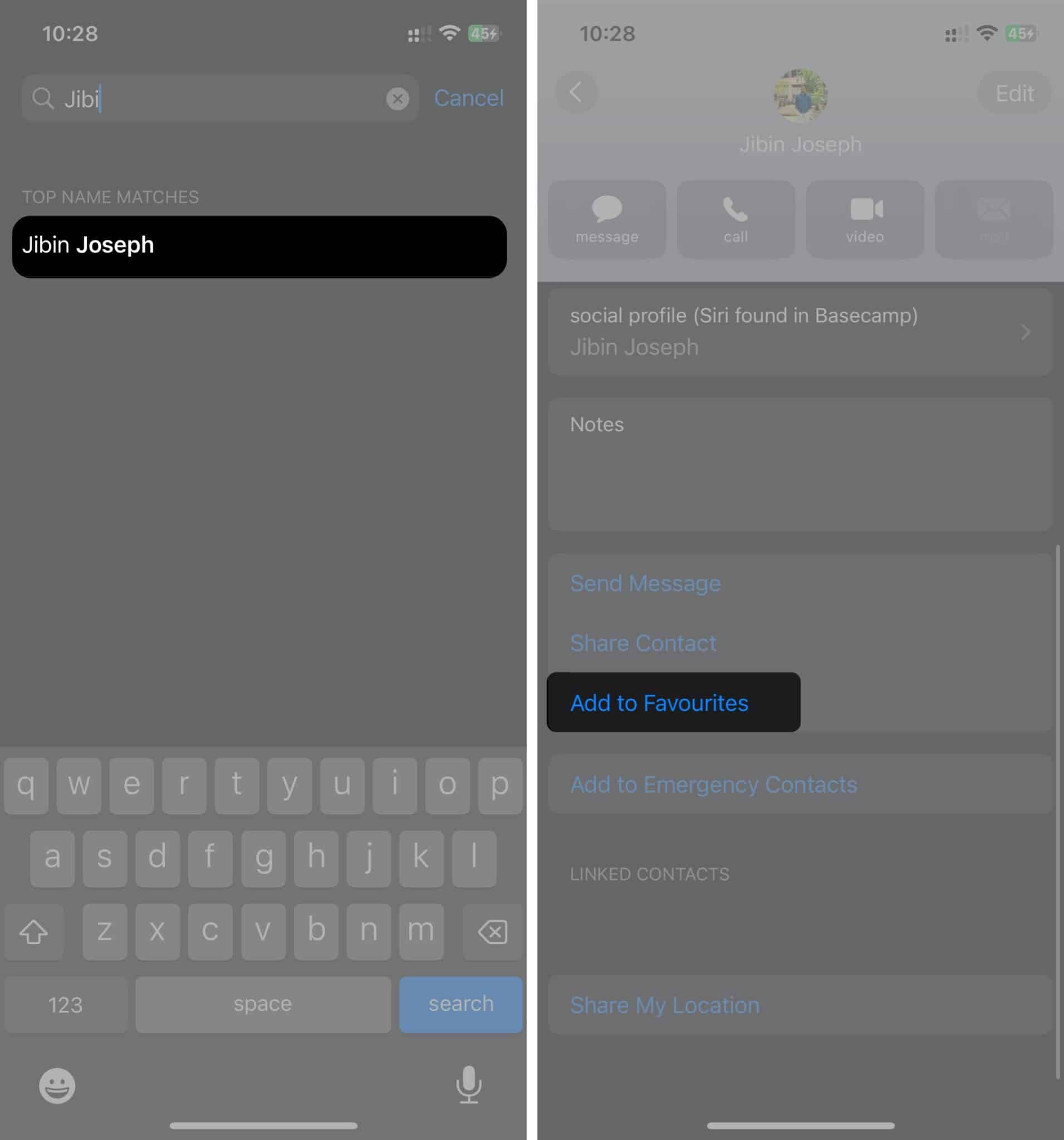
- Choose the preferred contact method for that person.
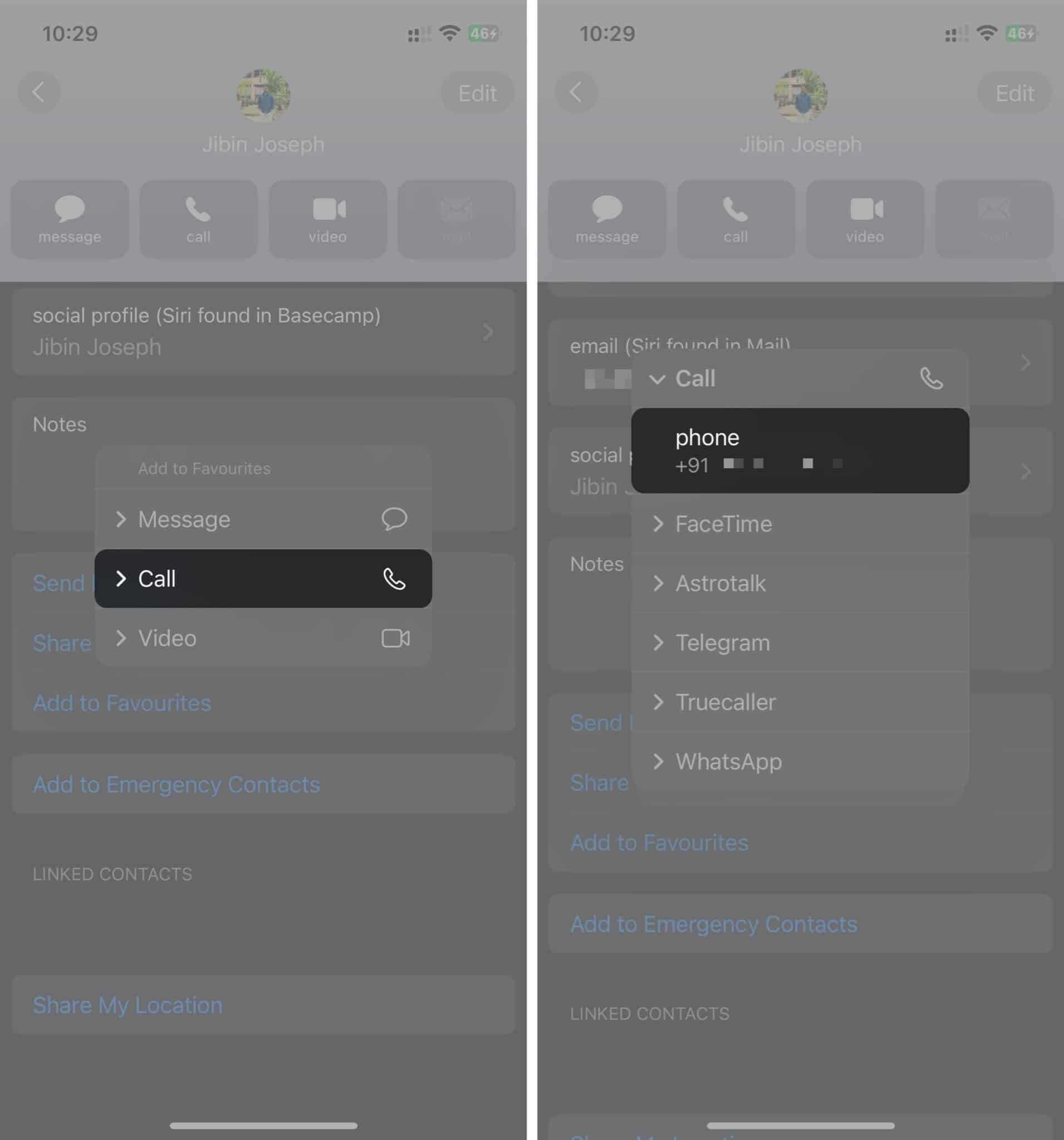
Once added, the contact will appear in your Favorites list. If you already have a list, the newly added contacts will be placed at the end. You can rearrange the order if needed.
How to rearrange contacts in Favorites on iPhone
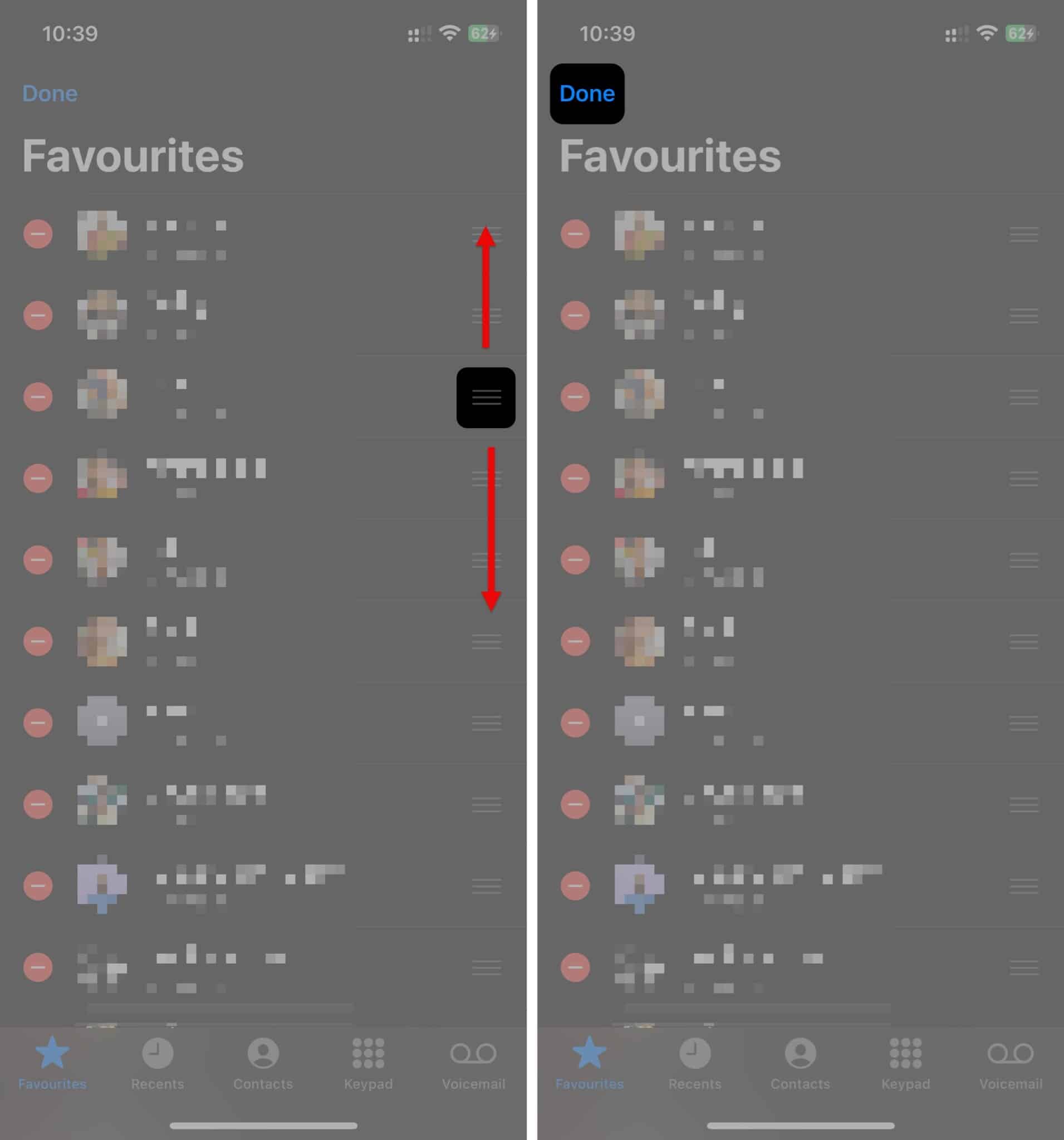
As your Favorites list grows, you might want to keep your most frequently contacted people at the top. Fortunately, iOS allows you to reorder your favorite contacts easily:
- Open the Phone app and go to the Favorites tab.
- Tap Edit in the top-right corner.
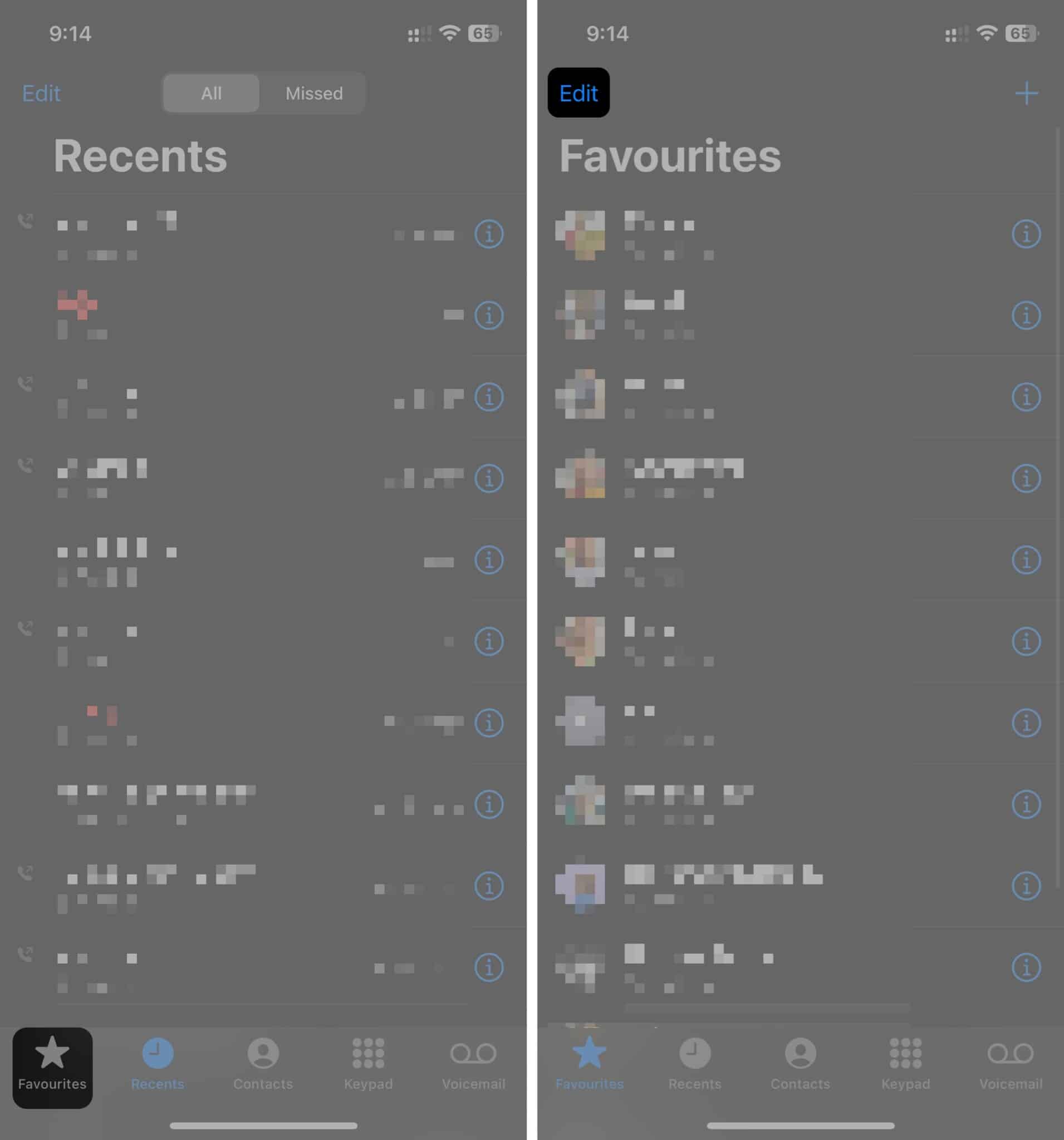
- Press and hold the three-lined button next to a contact, then drag it to your desired position.
- Tap Done to save the changes.
How to remove contacts from Favorites on iPhone
If you accidentally added a contact to Favorites or no longer need them on the list, you can quickly remove them:
- Open the Phone app and go to the Favorites tab.
- Tap Edit in the top-right corner.
- Tap the red minus (-) icon next to the contact you want to remove.
- Select Delete to remove the contact from Favorites.
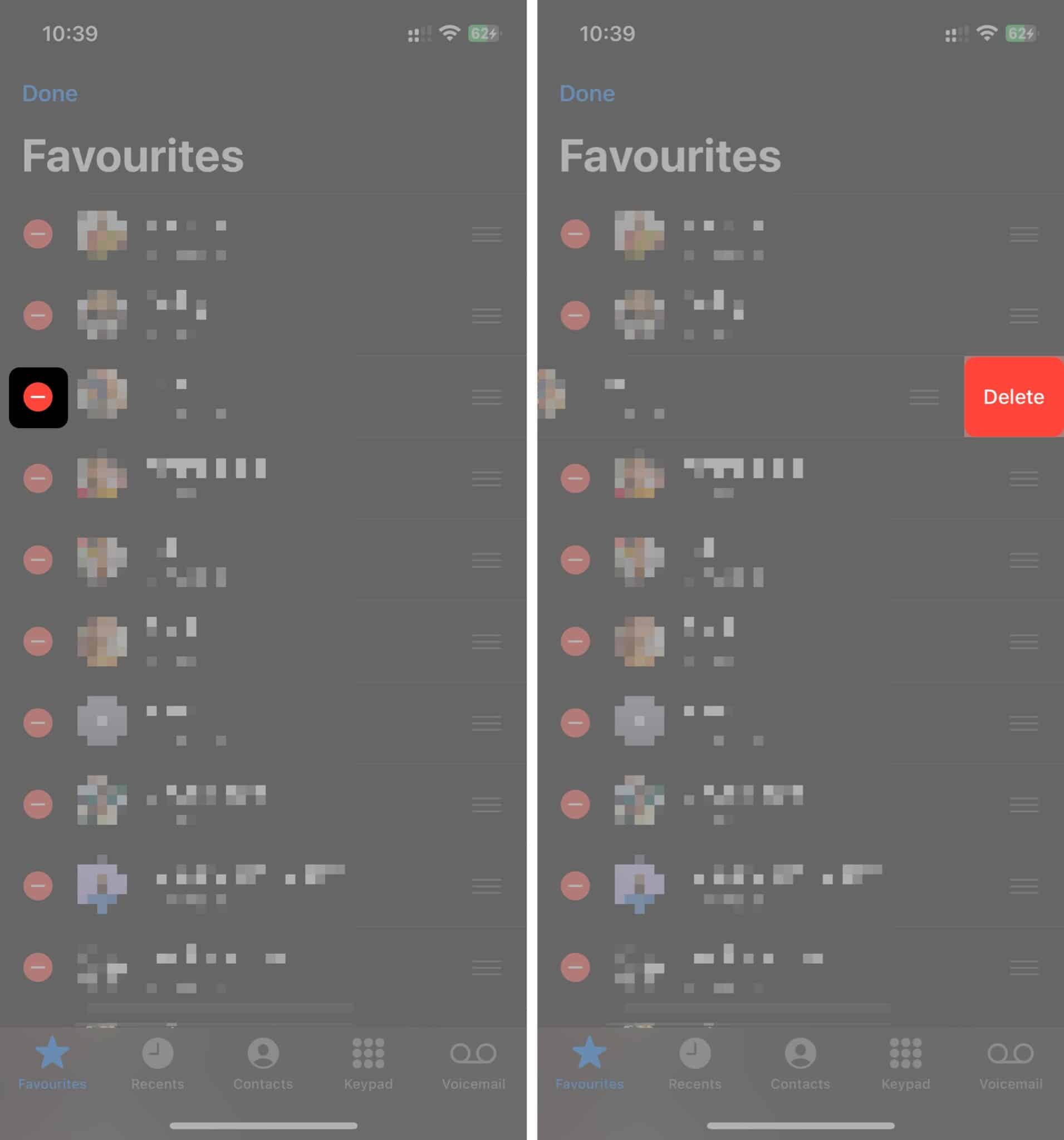
Once removed, the contact will no longer appear in your Favorites list, but you can always add it back if needed.
How to allow calls from Favorite contacts on iPhone in Focus mode or DND
One major benefit of adding contacts to Favorites is that they can reach you even when Focus mode is enabled. If you want to allow calls from Favorite contacts while using Focus mode, follow these steps:
- Open the Settings app.
- Tap Focus and select the Focus mode you want to customize. In this case, we’ll choose Do Not Disturb.
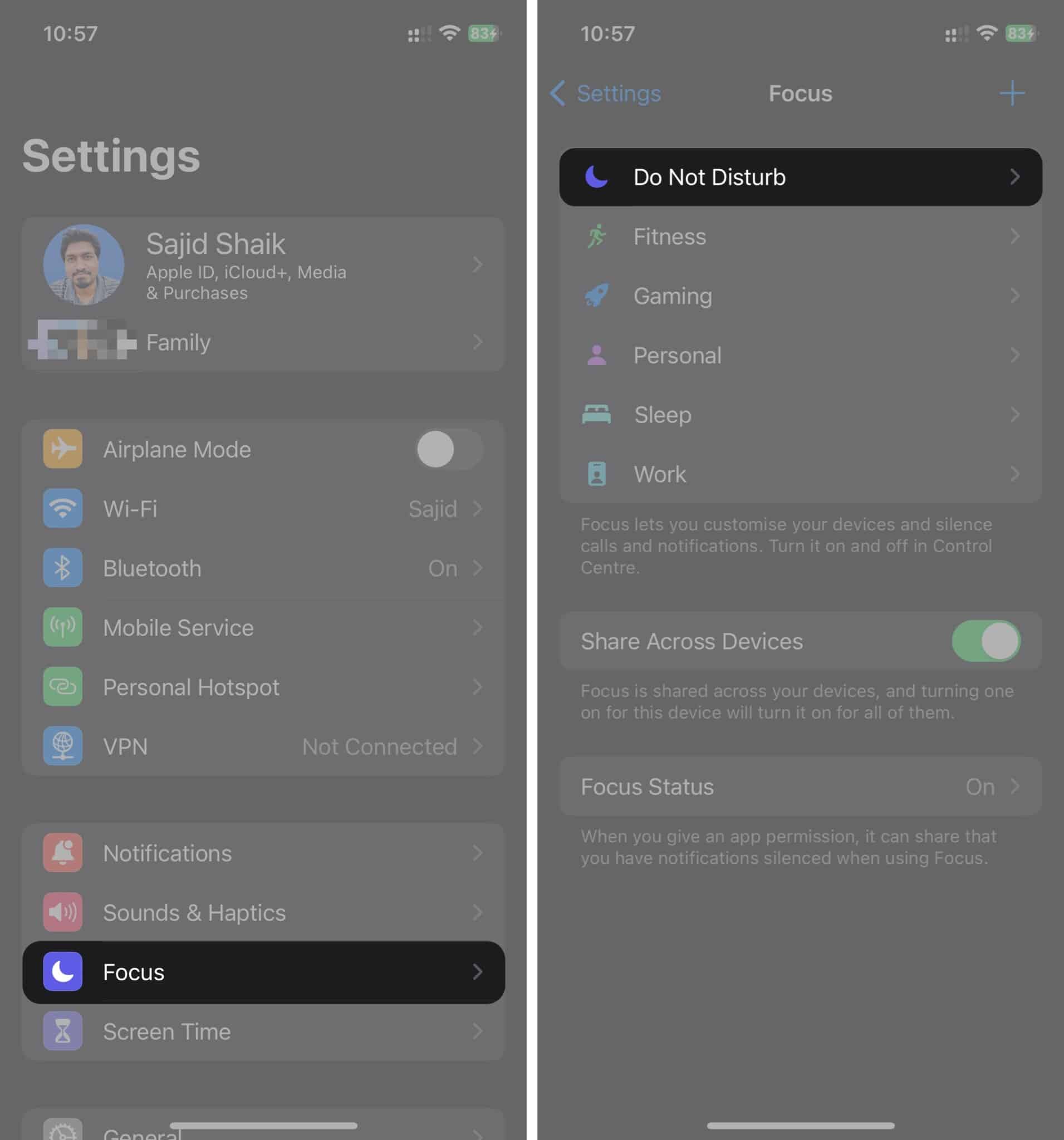
- Tap People under Allowed Notifications.
- Next to Allow Calls From, select Favorites from the dropdown menu.
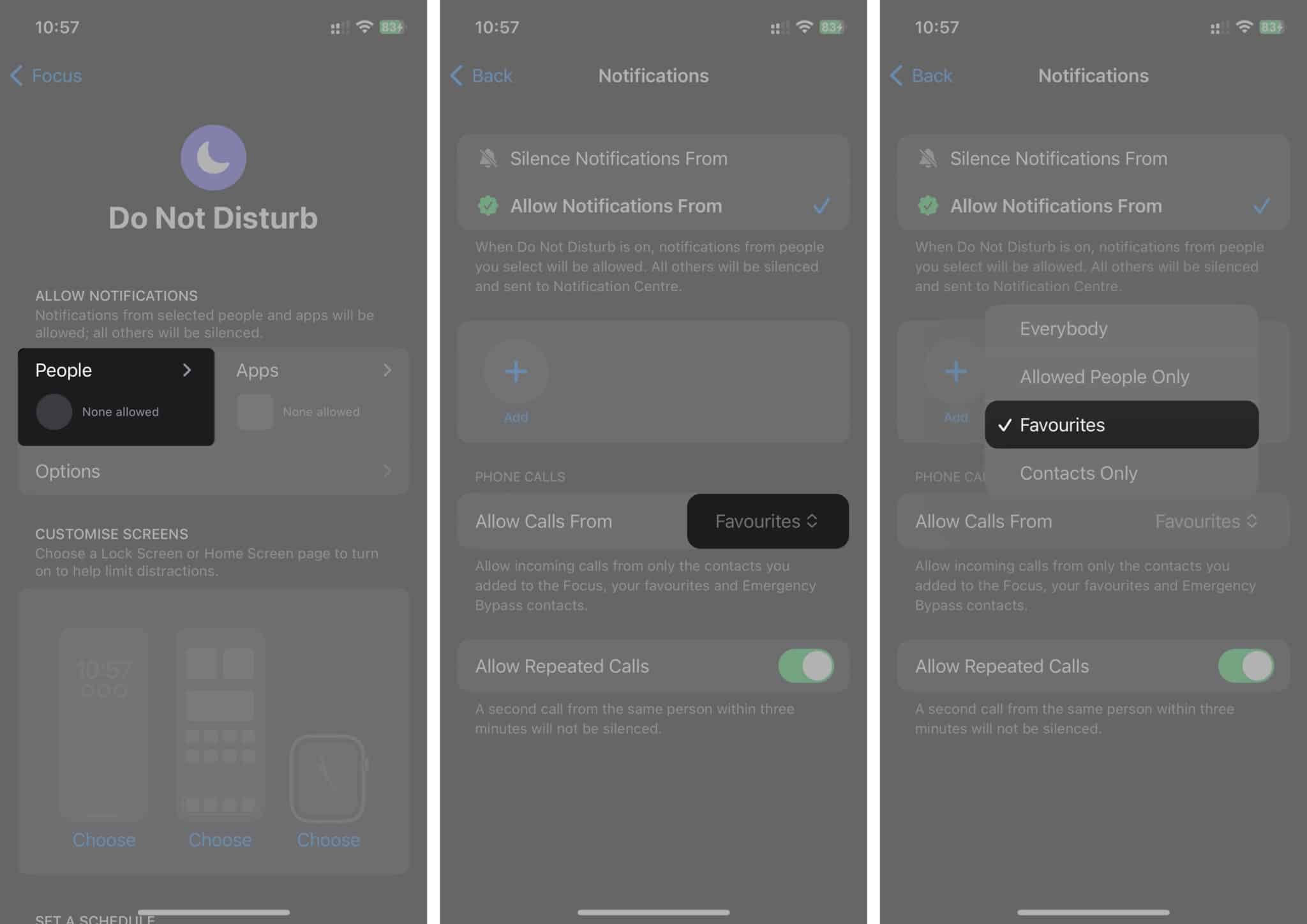
(Optional) Toggle on Allow Repeated Calls for emergencies. If someone calls you twice within three minutes, the second call will bypass Focus mode and ring your phone.
Video on how to add and manage Favorite Contacts on iPhone
Final Thoughts…
The Favorites feature on iPhone helps you access important contacts quickly and ensures you don’t miss urgent calls while in Focus mode. By following these steps, you can add, manage, and customize your Favorites list for a smoother calling experience.
Let me know in the comments if you found this guide helpful!
Frequently Asked Questions

Written by
Sajid ShaikSajid Shaik is a tech enthusiast who explains complex concepts in a clear and concise way. For the past 7 years, he has been a regular contributor to tech blogs and publications, including MakeUseOf and iGeeksBlog. Sajid also has extensive knowledge of the Apple ecosystem, which he shares with his readers through his words. He has created a wide range of content, such as How-Tos, Reviews, Listicles, and much more. Aside from that, Sajid has a degree in Electronics and Communication Engineering, which gives him an advantage in better understanding technology at hardware level. Apart from writing, you can find him fiddling with Apple products or keeping up with all things Apple.
View all posts →More from How-to

Snapchat Parental Controls: How to Set Up Family Center and Keep Your Teen Safe
Snapchat’s Family Center lets parents monitor their teen’s friend activity and screen time without reading private messages. Here’s how to set it up and what to expect.
 VikhyatMarch 3, 2026
How to Block and Unblock Someone on Instagram
Instagram lets you block or unblock someone in seconds. Follow these simple steps to take full control of your privacy and online peace.
 Ava BiswasMarch 2, 2026
Apple Watch Not Responding? 8 Fixes That Actually Work
Is your Apple Watch unresponsive or stuck on a black screen? Here are 8 proven fixes to help you unfreeze it and get it working again quickly.
VikhyatMarch 3, 2026