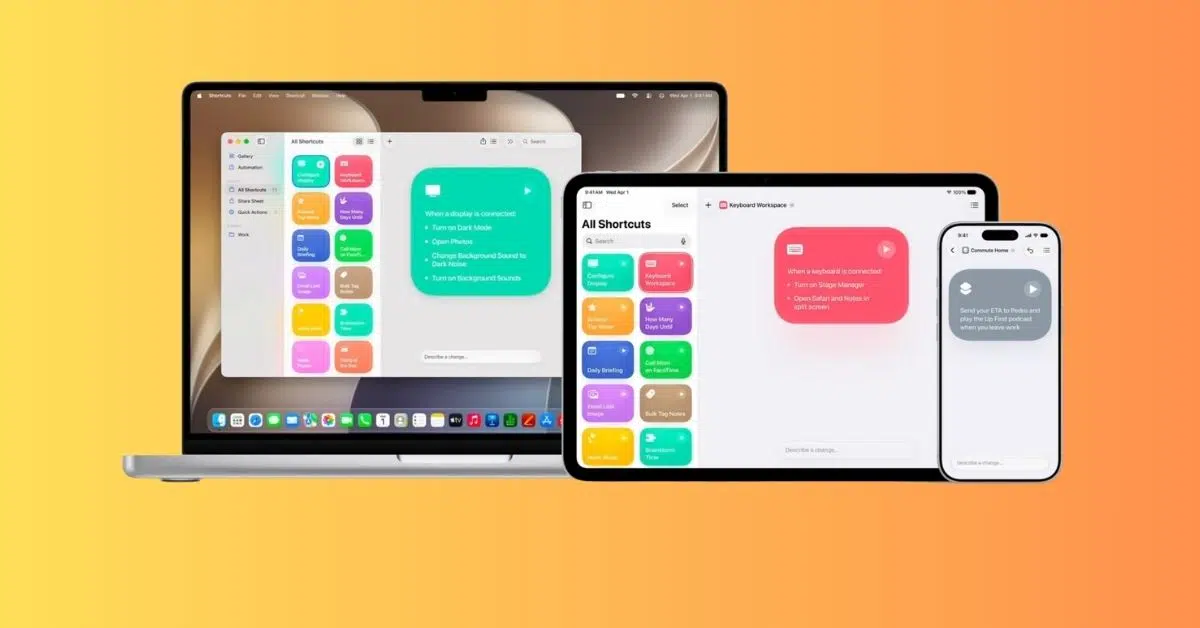
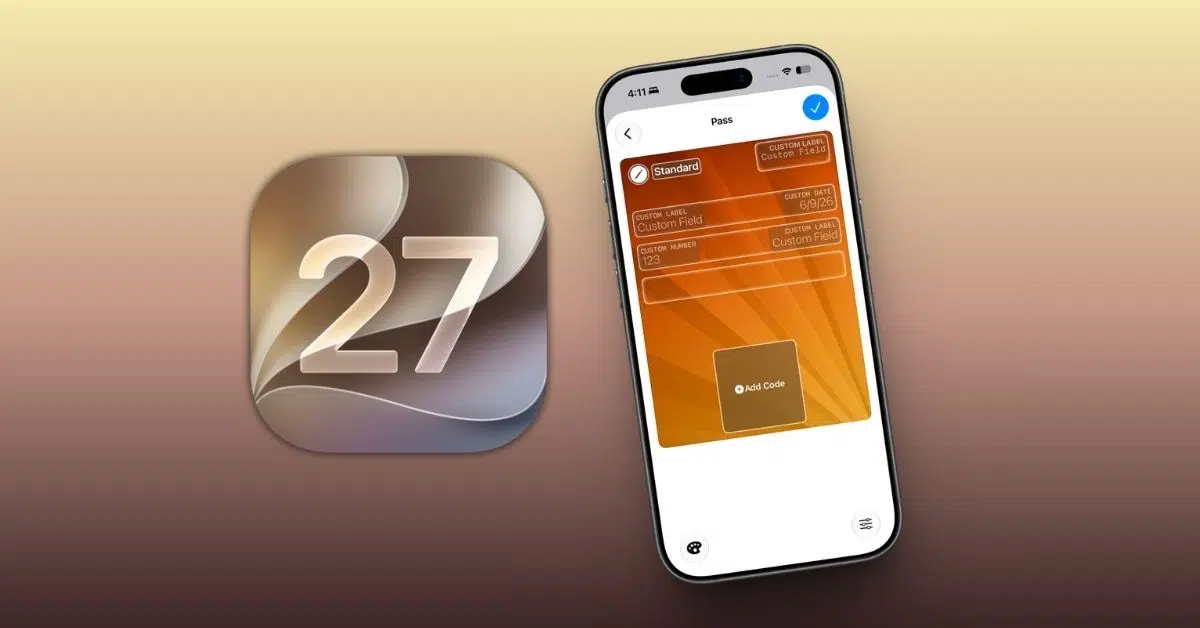
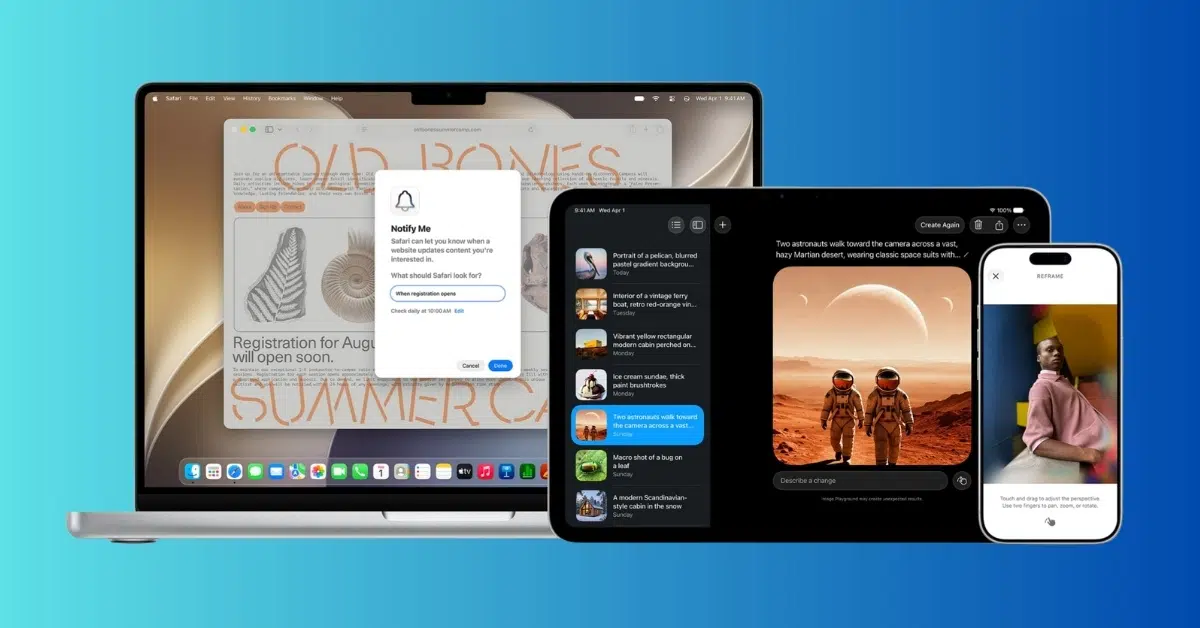
WWDC 2026 has officially kicked off, and Apple has taken the wraps off macOS Golden Gate. The latest version of macOS brings a fresh design, deeper Apple Intelligence integration, and a range of new features designed to enhance productivity, creativity, and everyday workflows on the Mac.
While the stable release is still a few months away, Apple has already made the first macOS Golden Gate 27 developer beta available for testing. If you want to be among the first to try the new features and see what’s changed, here’s how to download and install the macOS Golden Gate 27 developer beta on your Mac.
Things to know before installing macOS Golden Gate 27 developer beta
Before you download the beta, keep the following points in mind:
- Developer betas are early versions of software and may contain bugs, performance issues, and app compatibility problems.
- Some third-party apps may not work properly until they’re updated for macOS 27.
- Installing beta software on your primary work Mac isn’t recommended.
- Create a complete backup of your Mac before proceeding so you can restore your data if needed.
Macs compatible with macOS Golden Gate 27
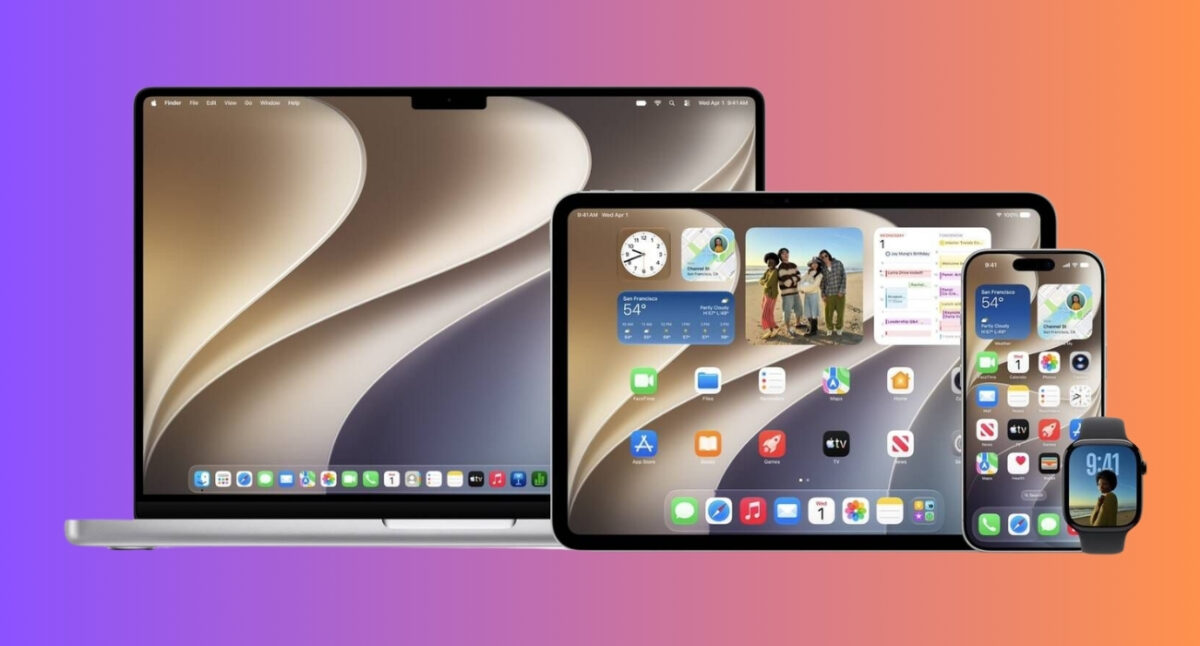
Apple has confirmed that macOS 27 supports the following Mac models:
- MacBook Neo – MacBook Neo (2026)
- MacBook Air – MacBook Air with Apple silicon (2020 and later)
- MacBook Pro – MacBook Pro with Apple silicon (2020 and later)
- iMac – iMac with Apple silicon (2021 and later)
- Mac mini – Mac mini with Apple silicon (2020 and later)
- Mac Studio – Mac Studio with Apple silicon (2022 and later)
- Mac Pro – Mac Pro with Apple silicon (2023 and later)
How to enroll in the Apple Developer Program
To receive beta updates on your Mac, you first need to enroll in the Apple Developer Program. Rest assured, there’s no fee involved. Here’s how:
- Visit the Apple Developer website.
- Sign in with your Apple Account.
- Complete the enrollment process if prompted.
Once enrolled, your Mac will become eligible for developer beta updates.
How to install macOS Golden Gate 27 developer beta
Signing up for the Apple Developer Program doesn’t automatically push the macOS 27 developer beta to your Mac. Once you’re enrolled, you still need to turn on developer beta updates in System Settings. After that, macOS 27 Developer Beta should appear in Software Update, ready to download and install.
- Open Settings and select General in the sidebar.
- Here, click Software Updates.
- Now, click the information button next to Beta Updates.
- Click Off.
- Next, choose the macOS 27 developer beta option and click Done.
- Wait for the update to appear.
- Click Upgrade Now or Update Now.
- Follow the on-screen instructions to complete the installation.
Can’t find the macOS Golden Gate developer beta?
If you’ve successfully enrolled in the Apple Developer program but the beta update isn’t showing up, try the following:
- Make sure you’re signed in with the same Apple Account enrolled in the Developer Program.
- Restart your Mac and check again.
- Ensure your Mac is compatible with macOS 27.
- Wait a little longer, as Apple may take some time to make the update available across all regions.
Should you install macOS Golden Gate developer beta?
The macOS 27 developer beta gives you early access to all the new features Apple announced at WWDC 2026, but it comes with the usual beta software trade-offs. You may run into bugs, app compatibility issues, unexpected battery drain, or performance hiccups that can affect day-to-day use.
I usually recommend installing the first developer beta on a secondary Mac if you have one; otherwise, wait for the public beta release. That way, you can try the new features without risking your primary workflow.
How to stop receiving macOS Golden Gate 27 beta updates
If you no longer wish to receive beta updates on your Mac, follow these steps:
- Go to Settings → General → Software Updates.
- Here, click the information button next to Beta Updates.
- Now, click macOS 27 developer beta.
- Next, choose the Off option.
After turning off Beta Updates, your Mac will stop receiving future macOS Golden Gate 27 beta builds. You’ll remain on your current beta version until Apple releases a newer public version of macOS. Once a stable release newer than your installed beta becomes available, you can update to it through Software Update without re-enabling beta updates.
If you’d rather leave the beta program immediately and return to a stable version of macOS, you’ll need to erase your Mac and reinstall the latest public release. You can then restore your data using a backup created before installing the macOS 27 developer beta. This is why backing up your Mac before installing beta software is always recommended.
Signing off…
The macOS Golden Gate 27 developer beta gives Mac users an early look at everything Apple announced at WWDC 2026. While beta software isn’t perfect, it’s the fastest way to experience the latest features, design changes, and Apple Intelligence improvements before the official release arrives.
Have you installed the macOS 27 developer beta yet? Let us know what feature you’re most excited to try in the comments.